Posted in Technology Tips, Work From Home

My Favorite Google Calendar Settings and Features

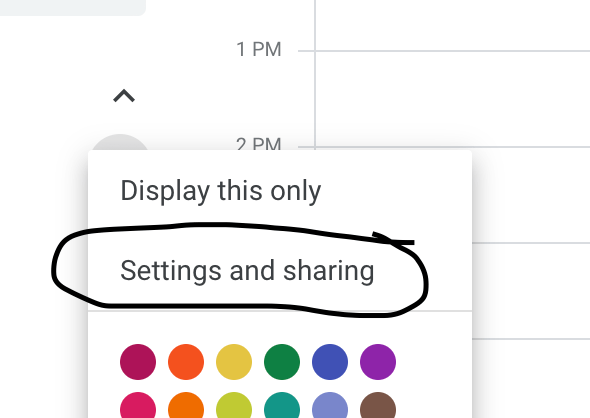
Settings and Sharing

Since I use my Google Calendar for all of my professional and personal tasks, I share it with anyone who might need to get a hold of me or schedule something. However, I do not necessarily need them to see all of the event details, so I choose the option of just Free/Busy.

Notifications

Normally, I don’t like to have a lot of notifications coming through on my email, but I do have some calendar notifications set up. If something is changed or canceled, I do like the email to come through so I’m aware of it and don’t just happen to notice it missing from my calendar at a later time. Another helpful notification is to get a daily agenda from your calendar emailed to you.

Color Coding Events

Originally, I utilized the create calendar feature to make a separate calendar for each of my activities. But then I realized if I was using the share calendar feature to alert people to my availability I would have to then share all of those calendars with them. So although it takes a second longer when I create an event. After I make it on my calendar, I right click the event and then change the color to match my coding for that activity. Then, at a glance, I can see what responsibilities I have for my freelance work, my teaching, and my school.

Multiple Time Zones

Another setting you can utilize on the calendar is to have more than one time zone displayed. This is helpful if you have to coordinate meetings with people who live in a different area. I have to do this and so I have two different time zones on my calendar to make it easier for me to plan meetings with others.

Overall, I find Google Calendar simple and user friendly. I like that I can access it on all my devices and put everything in one place!

Posted in Goal, Personal Skills, Time Management, Work From Home

Mastering the Power of Effective Scheduling: Some Tips to Make it Happen

Some people say that I’m a planner. Others say I’m calendar-oriented. Really, I just like to make sure that my time, tasks, and priorities are all reflected on my schedule. When someone asks me to do something and I agree (also power in saying no), I immediately add it to my Google Calendar, which can be accessed on my phone, iPad, and laptop. No matter where I am I have access to it.

If it is a work or professional meeting, I copy the Zoom or webinar link from the email and paste it directly into the calendar event that I create so that I do not have to search for the email when it’s time to log in.

Clarify your goals

It is important to know what you want to accomplish with your time. You cannot create an effective schedule if you don’t know what you are aiming for. I wrote a post on mini-goals here. Get specific on the main areas of your life and figure out the chunks of time that need to be spent on each.

Prioritize your tasks

When you sit down to work, or even at the beginning of every day, take a look at everything that needs to be accomplished. What is that one thing that can’t be put off? Do that first, in the morning if you can. For longer term projects, break it down into smaller deadlines and place those on your calendar. If you’re not sure how to prioritize, consider using a strategy like the Eisenhower Matrix.


Utilize a digital calendar like Google Calendar

Keep a calendar that can be accessed from all of your digital devices: laptop, phone, iPad, etc. That way, you always have access to what you need in the moment if someone asks to schedule something. Personally, because I work several part time jobs and manage my own schedule, I keep one Google Calendar for everything and color code by activity, including my personal commitments. For example, if a friend texts me and says, “hey, we should catch up on the phone Thursday around 8pm.” If I’m free, I actually confirm and add that to my calendar so I don’t forget to call or accidentally make plans to do something else because I forgot we were going to chat.

At work, I utilize my email kind of like a to do list. I try to check my email at certain points throughout the day, but if something comes on that I need to take care of that day or later in the week, I also add it to my calendar and include the reference email.

Learn to Say “Let Me Get Back to You”

If you’re a kind-hearted person who wants to follow through with helping people or do a good job, you’ll be tempted to say yes to everyone and everything. That is not a realistic way to manage a schedule because you will quickly become overwhelmed. However, instead of saying no right away, give yourself some think time when someone asks you to do something or for another meeting or a favor. Evaluate if it fits with your goals and priorities or fits in any extra time you have available for leisure. If not, perhaps you may have to decline or ask the person to check in with you at a later date.

These are just some of the strategies that I use on a regular basis to maintain my schedule. Please leave a comment if you’d like to hear more about any of them!

Posted in Uncategorized

Using the Eisenhower Matrix to Prioritize Your Important and Urgent Tasks

the Eisenhower Matrix

If you clicked on this article, you were drawn in by the prospect of prioritizing your tasks. Maybe you don’t know what the Eisenhower Matrix is, but you liked the Matrix movies and you kind of remembered that Eisenhower was a president or something. No worries – I am here to help you out with this strategy of prioritizing the tasks to be completed.

History of the Eisenhower Matrix

Other names for this matrix include the decision matrix or important/urgent matrix, but ultimately came from a quote by President Dwight Eisenhower.

I have two kinds of problems, the urgent and the important. The urgent are not important, and the important are never urgent.” – Dwight D. Eisenhower

https://woven.com/blog/the-eisenhower-matrix

From this quote, people took away the fact that there are four main categories that our tasks and activities fall into: urgent/important, urgent/not important, important/not urgent, and not important/not urgent. Although inspired by the quote from Eisenhower, the concept became popularized by Stephen Covey.

How Do We Use the Eisenhower Matrix?

Red pill or blue pill you say? Well, let’s take a look at something that could alter how you think about prioritizing your tasks. First, ask yourself if everything seems urgent and the world is constantly on fire. If you answered yes to that question, then utilizing this strategy could benefit your planning and reduce stress in your life.

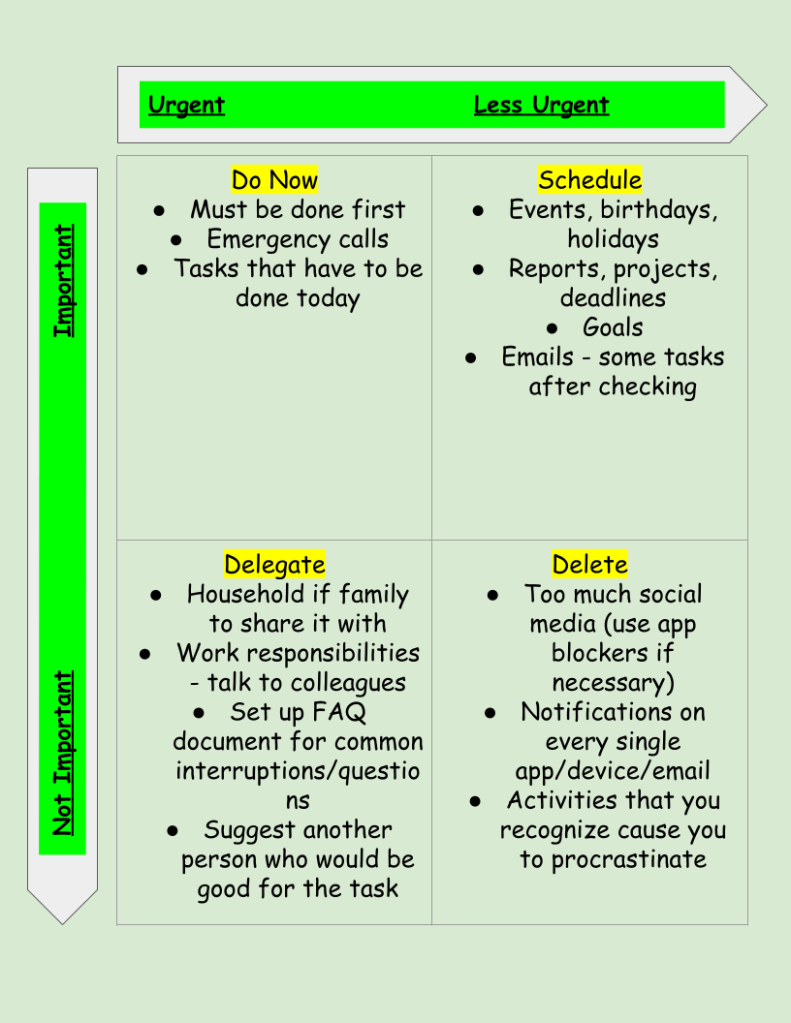
When you have a new task pop up in your personal or professional life, before acting on it, take a moment to pause and decide which of the 4 quadrants below that it belongs in. If it truly is urgent, like your kid fell outside and hit their head, then of course handle it at the moment. If it’s a work email on a Saturday morning that doesn’t really have to be handled until Monday, well … can you pause and save it for Monday?

You can do this on a daily or weekly basis, but I find it to be helpful to periodically go through my big tasks and move them to different quadrants depending on what needs to be accomplished. Here is an example of a diagram you could create to visualize your task management:

eisenhower matrix

You’ll notice there is a box for the not important and not urgent tasks that says to delete. I prefer to look at this box as “in moderation” or evaluate shortcuts and strategies to become more efficient. Do I really need to get the CVS newsletter emailed to me every day? Probably not. In which case, I can delete it by unsubscribing and freeing up that inbox space and mental space. I wrote another post about email tips if you’re interested in checking that out.

So, next time someone asks you to do something or you feel that pressure that everything at work is urgent, decide if it is both urgent and important before you act. Check your 4 quadrants. If it is both urgent and important, go for it. If it’s not urgent, but still important, add it to your calendar for later in the day or in the week, but don’t forget about it. That’s why the matrix says to schedule it.


You can order these super cool daily sticky notes to keep yourself organized and prioritize each day:

Sources:

https://woven.com/blog/the-eisenhower-matrix

Product Plan Glossary

*Links to products are affiliate links

Posted in Time Management, Work From Home

Using the Eisenhower Matrix to Prioritize Your Tasks

If you clicked on this article, you were drawn in by the prospect of prioritizing your tasks. Maybe you don’t know what the Eisenhower Matrix is, but you liked the Matrix movies and you kind of remembered that Eisenhower was a president or something. No worries – I am here to help you out with this strategy of prioritizing the tasks to be completed.

History of the Eisenhower Matrix

Other names for this matrix include the decision matrix or important/urgent matrix, but ultimately came from a quote by President Dwight Eisenhower.

I have two kinds of problems, the urgent and the important. The urgent are not important, and the important are never urgent.” – Dwight D. Eisenhower

https://woven.com/blog/the-eisenhower-matrix

From this quote, people took away the fact that there are four main categories that our tasks and activities fall into: urgent/important, urgent/not important, important/not urgent, and not important/not urgent. Although inspired by the quote from Eisenhower, the concept became popularized by Stephen Covey.

How Do We Use the Matrix?

Red pill or blue pill you say? Well, let’s take a look at something that could alter how you think about prioritizing your tasks. First, ask yourself if everything seems urgent and the world is constantly on fire. If you answered yes to that question, then utilizing this strategy could benefit your planning and reduce stress in your life.

When you have a new task pop up in your personal or professional life, before acting on it, take a moment to pause and decide which box it belongs in. If it truly is urgent, like your kid fell outside and hit their head, then of course handle it in the moment. If it’s a work email on a Saturday morning that doesn’t really have to be handled until Monday, well … can you pause and save it for Monday?

You can do this on a daily or weekly basis, but I find it to be helpful to periodically go through my big tasks and move them to different boxes depending on what needs to be accomplished. Here is an example of a diagram you could create to visualize your task management:

You’ll notice there is a box for the not important and not urgent tasks that says to delete. I prefer to look at this box as “in moderation” or evaluate shortcuts and strategies to become more efficient. Do I really need to get the CVS newsletter emailed to me every day? Probably not. In which case, I can delete it by unsubscribing and freeing up that inbox space and mental space. I wrote another post about email tips if you’re interested in checking that out.

So, next time someone asks you to do something or you feel that pressure that everything at work is urgent, decide if it is both urgent and important before you act. If it is, go for it. If it’s not urgent, but still important, add it to your calendar for later in the day or in the week, but don’t forget about it. That’s why the matrix says to schedule it.


You can order these super cool daily sticky notes to keep yourself organized and prioritize each day:

Sources:

https://woven.com/blog/the-eisenhower-matrix

Product Plan Glossary

*Links to products are affiliate links

Posted in Uncategorized

Important Things I Learned From Time Blocking My Schedule

time blocking can be an effective time management strategy

There was a period of about 3-4 months when my schedule was extremely busy. I was juggling three different jobs and my own school work. Not to mention, it was the middle of a pandemic and I was packing up my personal belongings to move to a different state as well. I’m usually very good about managing my time using Google calendar and my to-do lists, but I knew I needed something extra if I was going to make sure everything got done.

I did some research on time blocking and adapted it to fit my needs. How many people approach time blocking is to keep a consistent schedule and do similar tasks in that block. For example:

7am-9am – Morning routine/family

9am-11am – Emails/meetings

11am-1pm – Lunch/ light to-do list items

1pm-3pm – Projects/deep thinking

3pm-5pm – Meetings/weekly planning

And so on. It could change daily or be a set weekly routine that someone follows.


I took this idea and combined it with keeping a calendar to schedule out everything that I had to do for the week and I did this every week. I color coded it by the job or task. Here is an example of one of my weeks.

time blocking

As you can see, I worked quite a bit during that time. Thankfully, my schedule is a little bit lighter now so I don’t have to schedule so strict. However, this method really worked for me when I was juggling a lot of things all at once. The blue was my personal time to do whatever tasks or downtime I needed. I should mention I worked from home through all of this so it was easy to switch between jobs because it was often just a browser or device switch.


I certainly took breaks to get water, coffee, and use the bathroom. I followed good protocol to stand up at least once per hour and rest my eyes from the screen every 20 minutes. So while I didn’t follow this schedule every week to the exact second, I stuck to it pretty closely, and it really helped me accomplish everything without feeling overwhelmed. Every day, I prioritized the tasks that needed to be done that day and followed through on those items to the best extent possible. I had a weekly accountability call with a friend on Sundays to discuss our goals for the week and keep us focused.

Another thing that helped was scheduling times to check my email. Many days I have email open in the background and respond as messages come in if I’m not too busy. However, on days or weeks when I know I will be very busy working on projects, reports, and meetings, I schedule checking email into my calendar. That way, I have the tab closed so it’s not distracting me from my work, but I know I’ll get to it because I’ve prioritized time to deal with it.

I will definitely use this method again during busy seasons of my life!

Posted in Time Management, Work From Home

What I Learned From Time Blocking My Schedule

There was a period of about 3-4 months when my schedule was extremely busy. I was juggling three different jobs and my own school work. Not to mention, it was the middle of a pandemic and I was packing up my personal belongings to move to a different state as well. I’m usually very good about managing my time using Google calendar and my to-do lists, but I knew I needed something extra if I was going to make sure everything got done.

I did some research on time blocking and adapted it to fit my needs. How many people approach time blocking is to keep a consistent schedule and do similar tasks in that block. For example:

7am-9am – Morning routine/family

9am-11am – Emails/meetings

11am-1pm – Lunch/ light to-do list items

1pm-3pm – Projects/deep thinking

3pm-5pm – Meetings/weekly planning

And so on. It could change daily or be a set weekly routine that someone follows.


I took this idea and combined it with keeping a calendar to schedule out everything that I had to do for the week and I did this every week. I color coded it by the job or task. Here is an example of one of my weeks.

As you can see, I worked quite a bit during that time. Thankfully, my schedule is a little bit lighter now so I don’t have to schedule so strict. However, this method really worked for me when I was juggling a lot of things all at once. The blue was my personal time to do whatever tasks or downtime I needed. I should mention I worked from home through all of this so it was easy to switch between jobs because it was often just a browser or device switch.


I certainly took breaks to get water, coffee, and use the bathroom. I followed good protocol to stand up at least once per hour and rest my eyes from the screen every 20 minutes. So while I didn’t follow this schedule every week to the exact second, I stuck to it pretty closely, and it really helped me accomplish everything without feeling overwhelmed. Every day, I prioritized the tasks that needed to be done that day and followed through on those items to the best extent possible. I had a weekly accountability call with a friend on Sundays to discuss our goals for the week and keep us focused.

Another thing that helped was scheduling times to check my email. Many days I have email open in the background and respond as messages come in if I’m not too busy. However, on days or weeks when I know I will be very busy working on projects, reports, and meetings, I schedule checking email into my calendar. That way, I have the tab closed so it’s not distracting me from my work, but I know I’ll get to it because I’ve prioritized time to deal with it.

I will definitely use this method again during busy seasons of my life!

Posted in Personal Skills, Work From Home

Email Tips: Strategies to Keep Your Inbox Organized

A little over three years ago I made the switch to a zero inbox and it was the best thing I ever did for my organizational skills. At that time I had had my personal Gmail account since about 2005 with thousands and thousands of emails. Instead of taking time putting everything into folders, I simply decided to archive it all and start from that day forward. Since I started a new job, I was able to keep my work email at zero inbox from day one.

Here’s how I manage emails now to keep my inbox as close to zero as possible:

  1. Check email first thing each morning (after affirmations and to do list) and before I close my computer from work for the day. By doing this, I can deal with any emails that came in before I started my work day for all the early birds who start before me and then I can create a plan for everything left over at the end of the day.
  2. Check email at set times throughout the day. Now, I don’t always follow this rule perfectly because it depends on what I’m working on. If I need to focus on a project or task and I don’t want to be disturbed by emails, I close the tab and set my timer to check it once per hour or every 2 hours so as to still be responsive to needs of coworkers, but not be interrupted by constant flows of incoming emails.
  3. I use the two minute rule when dealing with emails as I go through them. This idea comes from the Getting Things Done method by David Allen. If it’s something I can respond to right away, I quickly send a reply and then file that email in a folder. If it doesn’t need a response, I file it right away. If it’s informational and a deadline is attached, but it’s not immediate, I use the snooze feature to send it back to me when it needs to be completed or responded to. If it is going to take a bit longer, I work on it during an email response period during the day.

So by the end of the day everything should either be snoozed, responded to, or filed in a folder. I rarely delete emails because I do frequently have to refer back to old emails for information and it’s very easy to find when they are in folders. I also use the search function in Gmail to find the emails that I need. For newsletters and subscriptions, I create filters that send the emails directly to folders so it doesn’t even have to come to my inbox.

My personal favorite Gmail settings are to use the compact view with conversation view off. I like to see all my emails individually and conversation view confuses me a bit. Because I see all messages individually, I sometimes will only keep the most recent email in a thread and delete the rest because it’s not needed.

And, to save myself a little time, I have smart reply turned on so it auto detects what I might want to say. It’s kind of scary how accurate it is. I also use Grammarly to check my spelling, tone, and grammar as a I go.

Keeping my email organized and efficient has helped me to save time and communicate effectively!

Posted in Uncategorized

5 Helpful and Quick Time Management Tips To Test Out Today

Quick time management tips can help you stay focused and on task. I rarely hear people say they’ve got too much time on their hands. It’s often more about the lack of time that frustrates most. We all get the same amount of time in a day and how we use it has important implications for the outcomes of our lives.

Time management is an area of my life where I am constantly looking to improve. I seek ways to plan and be more productive. I used to thrive on being busy thinking that that was a marker of effective time management, when in fact it is not. Now, I seek ways to engage in deep focus and practice self-care to make the most of the time I have. Here are some of the strategies that I use.

5 Quick Time Management Tips

  • Single task. In order to turn my focus to the task at hand, I close out the email tabs, turn off the notifications, and focus on one item of my to do list at a time. Each day I use a template to write tasks for the day.
  • Modified Pomodoro. Google the Pomodoro Method and you’ll find lots of articles and resources. I use it, but sometimes I modify it and use the amount of work time that fits best in my schedule. So instead of 25 minute work chunks, I might do 30 or 45 or even an hour.
quick time management tips
Photo by Andrey Grushnikov on Pexels.com
  • Prioritize. I keep my recurring tasks and upcoming to do items on a program called TickTick. Each day, I use that as my guide to prioritize what needs to be completed. I set aside 15-20 minutes each morning to start my day with prioritizing that way I’m not caught off guard as the day goes on. If something comes up, I can decide if it fits in my priorities or if it can be moved to the next day.
  • Improve technology skills. This is an important time management tip for anyone working from home. If you spend a lot of time on the computer, then finding quicker ways to complete tasks saves time. Time saved by technology can be spent on other priority areas. Utilize the free resources available to brush up on your tech skills such as keyboard shortcuts.
  • Calendar. I use Google calendar to color-code all of my meetings and tasks. I add big projects to my calendar and block off time to complete them. I also use a paper calendar because I still like to have things written down.

Even with a good system in place, time management will always be a struggle. It’s something that you have to continue to work hard at—it’s not something that you should expect to be perfect at right away.

But even though it can be difficult to maintain your focus and your high productivity over the long-term, it is essential to striving towards excellence in all areas of life. Utilize some of these quick time management tips to get you started!

Posted in Personal Skills, Time Management, Work From Home

Time Management Tips

I rarely hear people say they’ve got too much time on their hands. It’s often more about the lack of time that frustrates most. We all get the same amount of time in a day and how we use it has important implications for the outcomes of our lives.

Time management is an area of my life where I am constantly looking to improve. I seek ways to plan and be more productive. I used to thrive on being busy thinking that that was a marker of effective time management, when in fact it is not. Now, I seek ways to engage in deep focus and practice self care to make the most of the time I have. Here are some of the strategies that I use.

  • Single task. In order to turn my focus to the task at hand, I close out the email tabs, turn off the notifications, and focus on one item of my to do list at a time. Each day I use a template to write tasks for the day.
  • Modified Pomodoro. Google the Pomodoro Method and you’ll find lots of articles and resources. I use it, but sometimes I modify it and use the amount of work time that fits best in my schedule. So instead of 25 minute work chunks, I might do 30 or 45 or even an hour.
  • Prioritize. I keep my recurring tasks and upcoming to do items on a program called TickTick. Each day, I use that as my guide to prioritize what needs to be completed. I set aside 15-20 minutes each morning to start my day with prioritizing that way I’m not caught off guard as the day goes on. If something comes up, I can decide if it fits in my priorities or if it can be moved to the next day.
  • Improve technology skills. This is an important time management tip for anyone working from home. If you spend a lot of time on the computer, then finding quicker ways to complete tasks saves time. Time saved by technology can be spent on other priority areas. Utilize the free resources available to brush up on your tech skills.
  • Calendar. I use Google calendar to color code all of my meetings and tasks. I add big projects to my calendar and block off time to complete them. I also use a paper calendar because I still like to have things written down.

*I get commissions for purchases made through links in this post.