Posted in Goal

When to use Google Sheets? Important ways to organize your life

When to use Google Sheets you ask? Over the years, I have tried so many techniques and apps to mange my time, tasks, and productivity. There are some pretty great digital apps, but lately my fall back solution is to use Google Sheets. And I’m loving it!

Sometimes simpler truly is better. Some of the features I love about Google Sheets is that I can create checkboxes, color code different categories, easily copy and paste from one area to the other, and create links between sheets to further organize a goal or task. So let’s break it down into the ways I use Google Sheets to organize my life and keep me motivated.

when to use google sheets for Health and Fitness Goals

First, let’s talk about health and fitness. Right now I don’t have access to a scale, which honestly is probably a good thing. I am walking a ton in Norway where I call home at the moment. So before that, I tracked my weight every week in a Google Sheet.

However, one of the most productive things I’ve done is create a training guide to complete a half marathon.

when to use google sheets

That method worked for me! At that time, I was already pretty in shape so I was able to start my first week with 2-3 miles.

Since it has been 5 years since I ran that race and I let running go, despite it being an excellent stress reliever, I have decided to do another one! I am planning to run the Bergen City Half Marathon at the end of April 2022.

So, of course, what did I do? I created a 20-week training plan with Google Sheets for myself! I will be on a European adventure trip for 8 days in December, so I just went ahead and blocked that week off so I don’t have to worry about being “disappointed” if I don’t meet my goals for that week. I will probably be walking a ton anyway. And since I am starting way more out of shape than last time, I’m giving myself a few slower weeks to ease back into running.
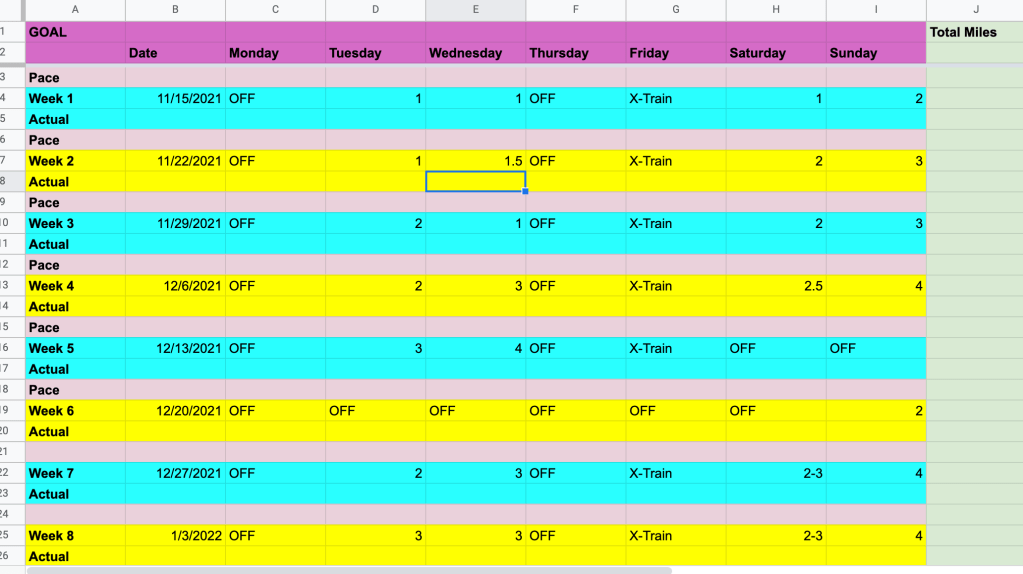
when to use google sheets

When to use google sheets for budgeting

I do not have a fancy or detailed budgeting system. I mainly use Google Sheets just to make sure that all my bills are paid on time each month. It also helps remind me to have enough money in my account for automatic withdrawals.
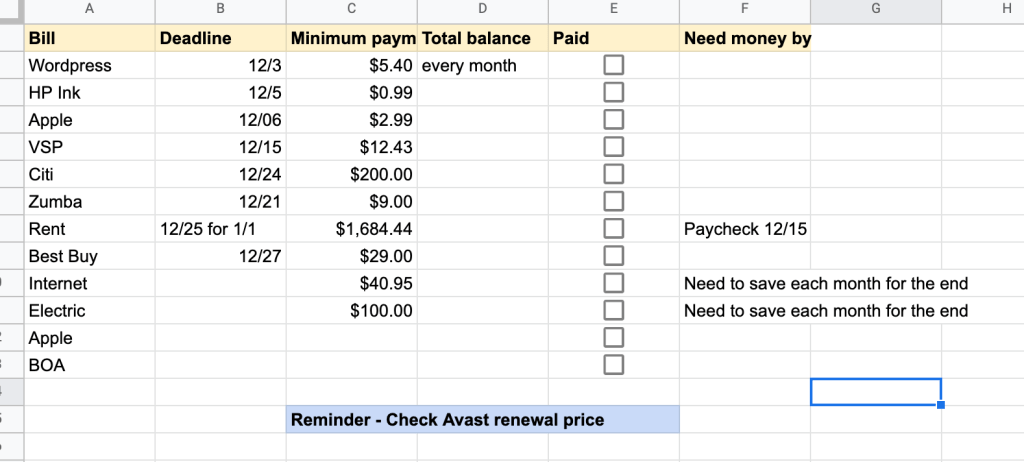
when to use google sheets

I should probably call this a bill system and not a budget system because you can see that I don’t account for food or miscellaneous expenses. This is my checklist for December. Some of the amounts change depending on renewals and you see I also put reminders when I know annual subscriptions are coming up. You don’t see car insurance on my December bills list because I am only paying about $40 every 6 months while I am in Norway and my car is just sitting in the U.S.

I am a licensed Zumba instructor, but I just don’t have the time right now to continue classes. And most of the people that attended my virtual classes previously were in a different time zone. So, I am paying a monthly hold fee so I don’t have to redo the whole licensing process when I get back to the U.S.

when to use google sheets for Daily and Weekly Tasks

I have tried all sorts of methods of tracking daily to do lists. Now, I just simply type my tasks out in the day I would like to complete it during the week it needs to be done. I can work several weeks ahead so that reminders go in and I don’t forget about important things. Then, when the week has passed, I just hide the sheet so the current week is first. If I don’t get it done, I just cut and paste it into the next day. I go through my action items for the week every Sunday night.

when to use google sheets

For my current job in Norway I have a lot of details to manage. I have to create a schedule for the year of places that I’m going to give workshops. Then, I have to make sure I do a bunch of things during that communication. So I created one giant Google Sheet that has the weeks of the school year listed. I put the main details in that sheet and then link to a checklist for each school visit. All the checklists are on individual tabs in a separate Google Sheet document.
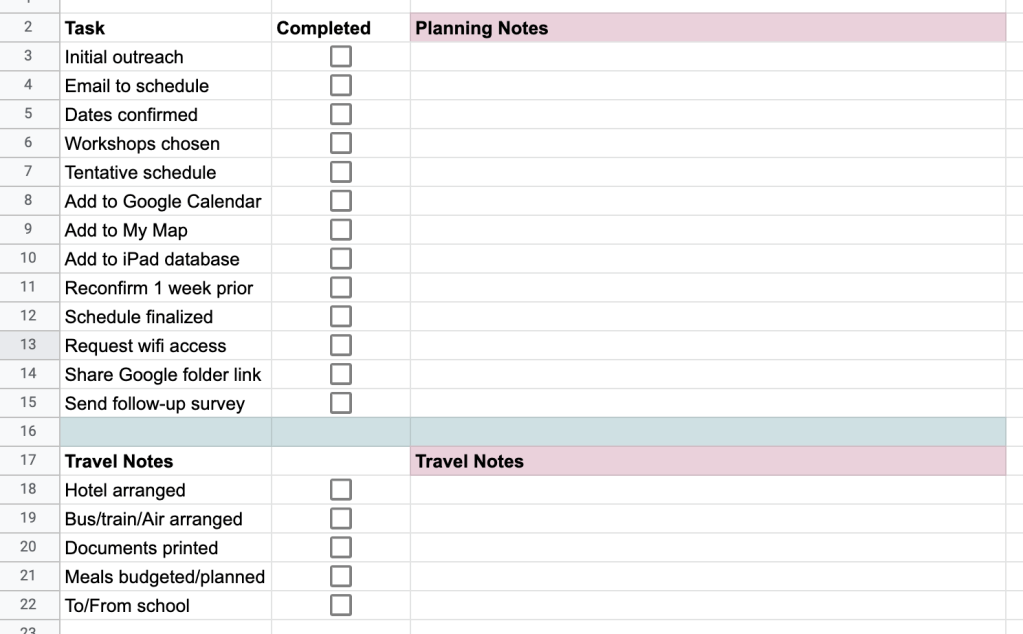
when to use google sheets

when to use google sheets as a Habit Tracker

Another way I use Google Sheets to organize my life is a habit tracker. Again, I’ve tried different forms of this, and I even have a PDF habit tracker for free here on my site. Here is a screenshot of how I used it in the past. Obviously, I was still in the process of building the habits then. Now, I don’t have to think about all of them quite so much. I used this when I was trying to build a solid morning routine.
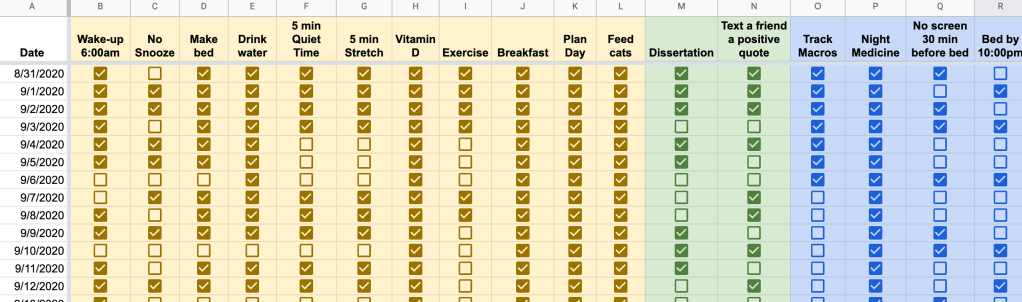
when to use google sheets

Final Thoughts for Today

There are many different ways you can use Google Sheets to organize your life. These are just some of the examples that I use to keep myself focused and organized. I’m sure if I went back through my whole Google Drive I would find even more examples. Share in the comments how you use Google Sheets for organization!

Posted in Uncategorized

It’s Almost a New Year! Time to Clean Up Your Email Inbox

I write this post on December 28th, 2021 reflecting on the past year and gearing up for the next. And it’s time to clean up your email inbox. I love the fact that January 1st provides a set date to start over, but the truth is, you can do this at any time. So, if you’re reading this at a different point throughout the year, the advice and tips still apply.

If you’re anything like me, your email and phone notifications and inboxes are just filled to the brim. Now, I do my best to maintain a zero inbox and minimize any notifications that will disrupt my thought process. However, things sneak up over time and it’s important to do a reboot of your process if necessary. For me, it’s time to get my email back in order.

Why I’m Feeling This Way

Now, I only have a few emails in my inbox at the moment so you might think that I’m doing a great job at managing emails. However, over the past year, I have joined different newsletters and applied to various jobs. That means that the volume of emails I’m receiving is still pretty high. So even though I’m wading through them, it takes more time than I would prefer.

It’s also a reflective time of year that makes me evaluate all my systems as I think about the goals I want to achieve for the upcoming year. And one of my continuous life goals is to be more reflectively productive. Not just productive for productive’s sake, but being truthful with myself about what’s working, what’s not working, and what causes extra unnecessary tasks.

So, before you jump into overhauling your email inbox, make sure it’s a priority that will help you. I listened to Ali Abdaal’s recent YouTube video on how much money he spent and he made a point about the money he spends ordering takeout. Cooking is not a priority so time isn’t invested in doing it or learning how to do it better. Make sure to invest time in the things that are a priority for you.

time to clean up your inbox
Photo by Torsten Dettlaff on Pexels.com

Time to clean up your email inbox: Strategies to help you

  • Review any emails that come through a subscription
    • I often sign up for new things not realizing how many times per day or week the organization will email me.
    • Sometimes I change the settings to once a week
    • Other times I just decide not to get that newsletter anymore because it’s no longer helpful. Use the auto unsubscribe feature in GMAIL or go through the organization’s system.
  • Create filters
    • Not every email has to clog up the inbox upon arrival. You can create filters to send emails to folders. Or, have it enter with a label based on a specific sender.
    • Filters help create visual clues about important emails upon arrival. For example, you may have a client or boss that demands immediate responses. Create a filter so it stands out when you are glancing at your emails throughout the day.
    • You can also set up notifications so that it only interrupts your workflow if it is from certain people.
  • Archive old emails
    • If you want to get started with an inbox zero, then archiving everything is a way to start. If you are not sure how to get started, then follow this guide.
    • My personal email account had tens of thousands of emails before I started doing this. I signed up for it in 2005 and since it is my name, I have kept it ever since.
    • No one has the time to review thousands of emails so simply archive all of them and start doing inbox zero moving forward. They will still be accessible through search so nothing is actually deleted.
  • Set boundaries
    • Decide how often you plan to check your email.
    • Decide what devices you will keep your email on.
    • Decide if you will get notifications via a sound alert or banner.
    • Set personal time aside where you will not check your emails at all – perhaps even for a day or two.

Now, these are all suggestions I have incorporated into my own routines over the last few years. As with life, my process and systems ebb and flow to match my current endeavors and productivity needs.

Comment below with any helpful email tips to start the new year!

Posted in Uncategorized

10 Items to Spruce up Your Home Office: Amazing Amazon Finds

I’m always on the lookout for good Amazon finds.

It seems like the work from home options are here to stay long-term. Even before the pandemic, remote work was gaining popularity from both employers and employees. With streamlined communication and proper procedures, it can be a great way for companies to allow workers more flexibility in managing their time.

In this post, I wanted to share some of the products that I find to be helpful in my home office. These are in no particular order and I’m happy to share more if this list is helpful!

white bluetooth speaker on silver laptop computer. Amazon finds
Photo by Jessica Lewis Creative on Pexels.com

10 Home Office Amazon Finds

  1. 1. Waterproof desk mat

2. Atomic Habits by James Clear

3. Electric cup warmer

4. Ergonomic mouse pad

5. Power strip with USB port

6. Mini vacuum for keyboard and crumbs

7. Motivational desk plants

8. Monitor message board and phone holder

9. Desk organizer for stationary

10. Alexa as a virtual assistant


Best Sellers in Office Products
Posted in Personal Skills, Time Management, Work From Home

Using Gmail Efficiently: 6 Tips for Maximizing Your Inbox

I have been using Gmail for almost 20 years now. WOW!

I try to keep my email inbox at zero or as close to zero as possible at all times. During the day, the emails that are still there serve as my to-do list of sorts. I work through at certain times throughout the day and make a plan to address it on the spot. I also do not like to have email on my phone.

I find that I get distracted by the numbers and notifications and then I’ll read it and have to go back through it on my computer later anyway.

I have several accounts for different purposes. Although many people prefer to sync all of their email accounts, I actually like keeping them separate. It helps me compartmentalize the different tasks I have to do whether it be for school, personal, teaching, or entrepreneurial endeavors. And by having a separate teaching email account, I never miss a student question or concern because it doesn’t get lost in the many other emails I get on a daily basis.


Here are my top 6 tips for using Gmail efficiently

1. Compact View with Conversation Threading Off

I prefer the compact view the best in my inbox screen. I know a lot of people prefer to use the conversation view to group emails together, but I tend to get confused in threads and have to go back to figure out what was said.

By using the compact view, I do not miss any comments on any emails that are sent because each one shows up separately in my inbox. The compact view is nice because you can see more emails at a glance since the space is reduced between each one.

using Gmail

2. Smart Compose On

In the general settings, I use smart compose, grammar, spelling, and autocorrect. In fact, it’s kind of scary how accurate the smart compose is. It allows me to respond to emails faster because it predicts what I might say when I start a sentence. If I agree with the response, then I just click enter and keep typing the next portion of my email. I’ll all about ways to save myself time, but still write a quality and professional email response to someone.

3. Using Folders

Using Gmail, I go through my emails several times per day. Once it is filed or completed, it goes immediately into a folder. In my personal email, I have folders for advisory boards I serve on, billing information, doctor information, organizations I’m involved with, and much more.

Pretty much any activity has its own folder and that’s where the email lives after it has been addressed. It makes it much easier for me to find things later and know that I didn’t delete anything.

4. Setting up Filters

This setting is helpful if you get frequent emails from a specific person or organization. You can create a label and a filter for that person. It can be color coded and make it easier to stand out in your email inbox. Once you receive an email that you may want to filter, you can click the three dots at the top and then choose how you wish to filter that type of email in the future.

5. Schedule Send

I love to use schedule send when I am trying to send an email that needs a response from other people. I tend to draft emails later in the day during one of my work time blocks. However, if it’s getting close to 4:00 or 5:00pm, I don’t send the email right away. I schedule it to send at 8:00am the next morning so that it goes to the top of that person’s inbox.

Now they may have a great management system, but I’ve found that a lot of people have thousands of unread emails in their inbox and may miss things, especially if they are very busy. The other great use for schedule send is to give myself reminders. Even though I keep a pretty good list of action items in my digital app, it’s helpful when I have important reminders that I don’t want to forget.

For example, I needed to mention someone’s retirement at a workshop and I scheduled the email reminder to myself to come up during the week I would be preparing the agenda. I have learned that no matter how much I think I’m going to remember something, it is much better to have a plan and be prepared than to rely on my memory of something someone said 3 months prior.

6. SNOOZE!

This feature is my ultimate favorite use of my Gmail settings for efficiency. It is especially useful for maintaining a zero inbox. When I go through my emails throughout the day, if it is something that I don’t have time or is not urgent to respond to, I will snooze it to the next day.

Sometimes the emails are informational relating to an upcoming meeting later in the week or the following week. I then snooze it to the day I plan to review the agenda or that the information is most needed. Therefore, it stays out of my inbox, but it’s not filed in a folder yet because it’s still relevant.

Let me know if you found any of these tips helpful in the comments!