Posted in Technology Tips

My iPad Pro Accessories

I bought an iPad in January and I’m so excited to continue learning cool apps and features to best utilize all it has to offer. I will do another post about the apps I use on the iPad, but I wanted to share some of the accessories I have and what I’m thinking about purchasing.

  1. Cover – This cover is nice because it is lightweight, has space for the Apple Pencil, and stands up with the little triangle fold at the bottom. I chose the violet color and so far, it has worked out great for me.
  2. Paperfeel screen protector – This sticky screen protector actually makes it feel like you’re writing on paper with the Apple pencil. It still has the touchscreen capability and even helps to suppress sunlight.

What I’m thinking about buying:

  1. Bluetooth keyboard with iPad stand – right now I have an external keyboard and mouse that I use with my laptop stand, but I’m considering getting this all in one keyboard iPad stand.
  2. Apple Pencil case – I’m not sure if I want to get the case because I don’t know if it will fit in the charging dock on the iPad without having to take the case off each time. So, I’m holding off on this purchase for now.

What are your suggestions? I’d love to hear them!

Note: Links are affiliate links associated with possible commission.
Posted in Uncategorized

4 Useful iPad Pro Accessories and Why I Love my Ipad Pro

I bought an iPad in January 2021 and I’m so excited to continue learning cool apps and features to best utilize all it has to offer. Apple’s iPad sales witnessed an impressive 57% surge in 2020, as reported by TabletFeast.com, highlighting the significance of accessories in enhancing the user experience.

I will do another post about the apps I use on the iPad, but I wanted to share some of the accessories I have and what I’m thinking about purchasing. Additionally, here is a YouTube video describing some of my favorite features of my iPad.

And if you like writing on paper, check out this amazing screen protector that makes it feel like you are writing on a notebook.

  1. Cover – This cover is nice because it is lightweight, has space for the Apple Pencil, and stands up with the little triangle fold at the bottom. I chose the violet color and so far, it has worked out great for me.
  1. Paperlike screen protector– This sticky screen protector actually makes it feel like you’re writing on paper with the Apple pencil. It still has the touchscreen capability and gives you the notebook feel.

Other iPad Pro Accessories I’m Considering

  1. Bluetooth keyboard with iPad stand – right now I have an external keyboard and mouse that I use with my laptop stand, but I’m considering getting this all-in-one keyboard iPad stand.
  1. Apple Pencil case – I’m not sure if I want to get the case because I don’t know if it will fit in the charging dock on the iPad without having to take the case off each time. So, I’m holding off on this purchase for now.

What are your suggestions on other helpful iPad Pro accessories? I’d love to hear them!

Posted in Technology Tips, Work From Home

Keyboard and trackpad shortcuts for Macs

I am a long time Apple user. I do have to say that I preferred my 2013 Macbook Pro to my current 2020 Macbook Air. However, the one thing that remains the same is my desire to do tasks quickly and efficiently. To do so, I have some settings that make switching between projects pretty easy. I also use helpful keyboard and trackpad shortcuts whenever possible. I’ll share some of my favorite features here.

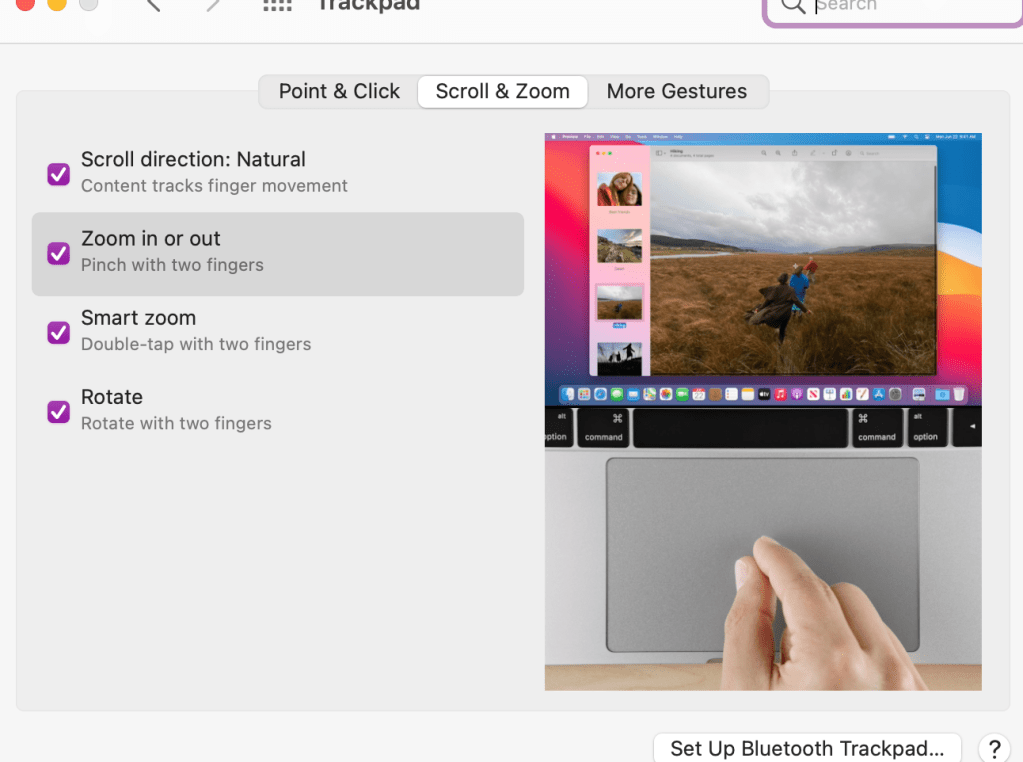
  1. Double tap the trackpad to zoom in and out quickly. Now, to make sure you have your settings the way you want them, you should go into your settings to trackpad and choose the features you think will help you best. Here is what I have turned on:

2. Mission control – swipe up with three fingers. I use this to have multiple desktops going at one time. I can separate my work projects on different desktops and then swipe up or left or right to go between desktops.

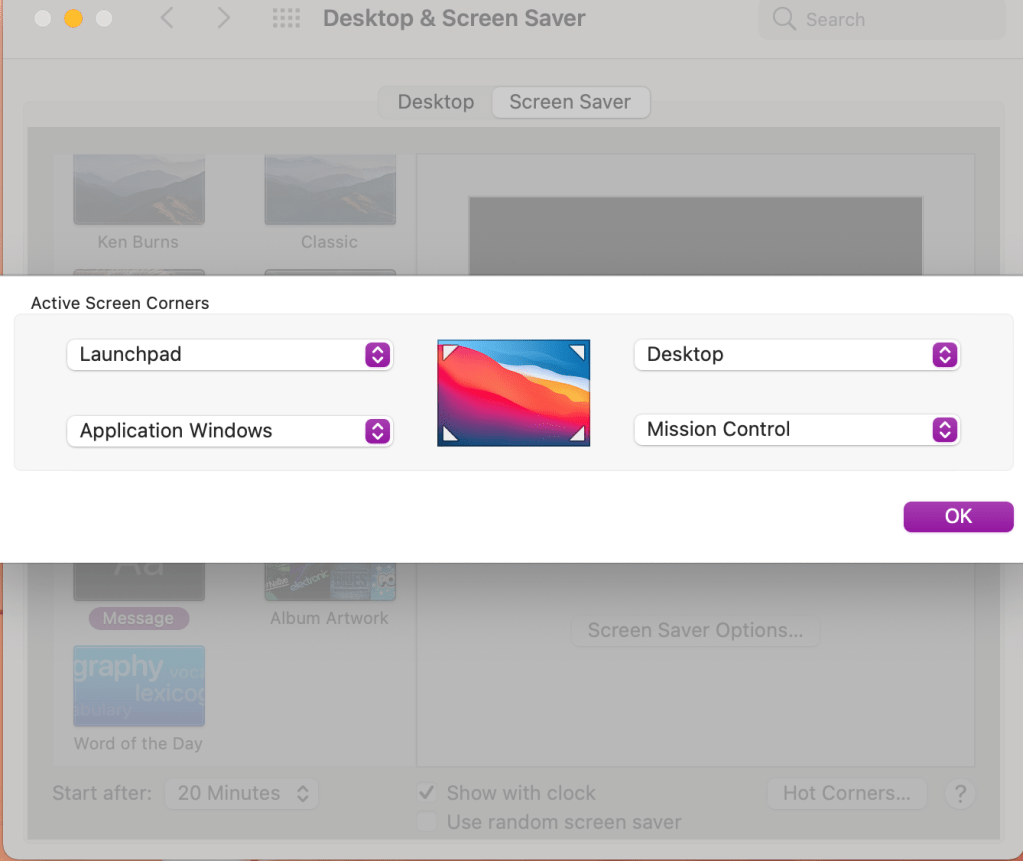
3. Setting up hot corners. Go into your desktop and screensaver settings. You can choose which shortcut you want each corner of your desktop to represent.

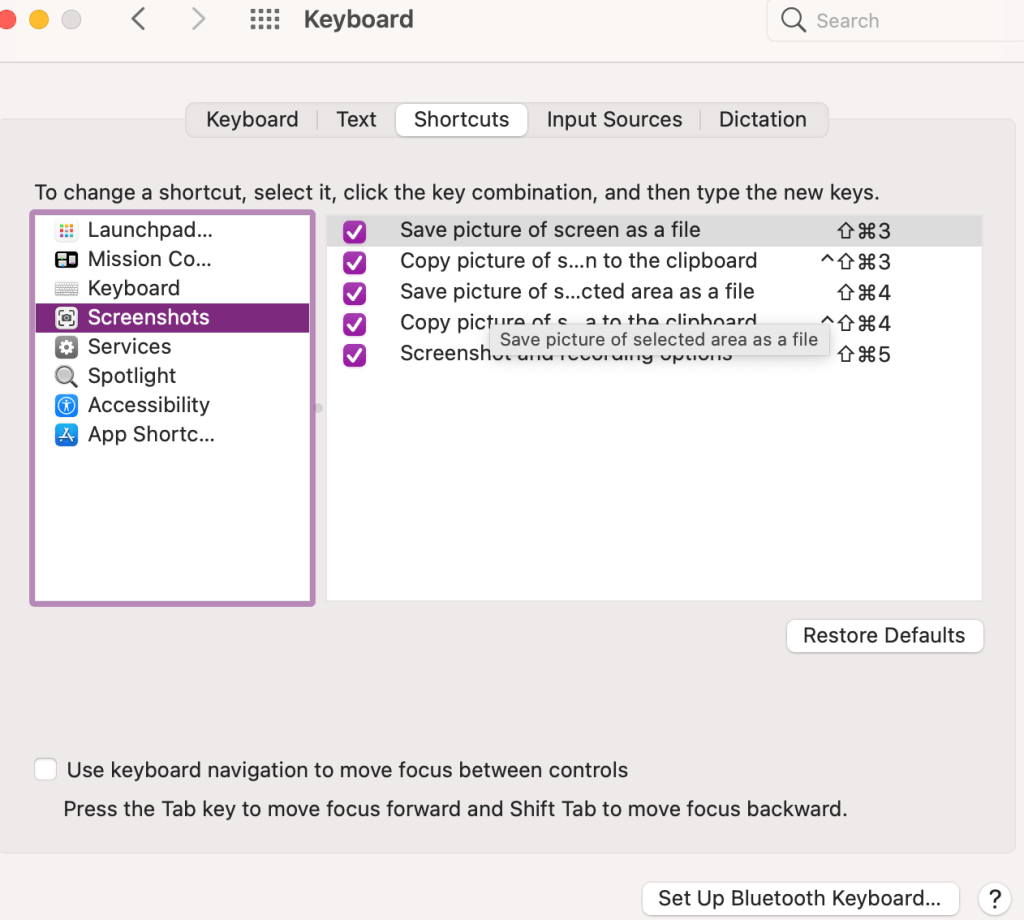
4. Take screenshots using Command + Shift + 4. I use this all the time to draw the box around whatever screenshot I’m taking. If you want to check out your other keyboard shortcuts go into your settings to keyboard and click on shortcuts.

5. And then just one favorite keyboard shortcut for good measure. Command + z. It doesn’t undo everything, but well, almost everything. I use this quite frequently for anytime I make a mistake. It’s like a quick undo button.

I hope this information was helpful! Please leave a comment on other tips and tricks you’d like to see.

Posted in Uncategorized

5 Helpful Keyboard shortcuts for Macs

Keyboard shortcuts for Macs can be really helpful to staying productive and working more efficiently. I am a long-time Apple user. I do have to say that I preferred my 2013 Macbook Pro to my current 2020 Macbook Air.

However, the one thing that remains the same is my desire to do tasks quickly and efficiently. To do so, I have some settings that make switching between projects pretty easy. I also use helpful keyboard shortcuts for Macs whenever possible.

I’ll share some of my favorite features here.

Keyboard shortcuts for Macs

  1. Double tap the trackpad to zoom in and out quickly. Now, to make sure you have your settings the way you want them, you should go into your settings to trackpad and choose the features you think will help you best. Here is what I have turned on:
keyboard shortcuts for mac

2. Mission control – swipe up with three fingers. I use this to have multiple desktops going at one time. I can separate my work projects on different desktops and then swipe up or left or right to go between desktops.

keyboard shortcuts for mac

3. Setting up hot corners. Go into your desktop and screensaver settings. You can choose which shortcut you want each corner of your desktop to represent.

keyboard shortcuts for mac

4. Take screenshots using Command + Shift + 4. I use this all the time to draw the box around whatever screenshot I’m taking. If you want to check out your other keyboard shortcuts go into your settings to keyboard and click on shortcuts.

keyboard shortcuts for mac

5. And then just one favorite keyboard shortcut for good measure. Command + z. It doesn’t undo everything, but well, almost everything. I use this quite frequently for anytime I make a mistake. It’s like a quick undo button.

I hope this information was helpful! Please leave a comment on other tips and tricks you’d like to see.