Posted in Time Management, Work From Home

What I Learned From Time Blocking My Schedule

There was a period of about 3-4 months when my schedule was extremely busy. I was juggling three different jobs and my own school work. Not to mention, it was the middle of a pandemic and I was packing up my personal belongings to move to a different state as well. I’m usually very good about managing my time using Google calendar and my to-do lists, but I knew I needed something extra if I was going to make sure everything got done.

I did some research on time blocking and adapted it to fit my needs. How many people approach time blocking is to keep a consistent schedule and do similar tasks in that block. For example:

7am-9am – Morning routine/family

9am-11am – Emails/meetings

11am-1pm – Lunch/ light to-do list items

1pm-3pm – Projects/deep thinking

3pm-5pm – Meetings/weekly planning

And so on. It could change daily or be a set weekly routine that someone follows.


I took this idea and combined it with keeping a calendar to schedule out everything that I had to do for the week and I did this every week. I color coded it by the job or task. Here is an example of one of my weeks.

As you can see, I worked quite a bit during that time. Thankfully, my schedule is a little bit lighter now so I don’t have to schedule so strict. However, this method really worked for me when I was juggling a lot of things all at once. The blue was my personal time to do whatever tasks or downtime I needed. I should mention I worked from home through all of this so it was easy to switch between jobs because it was often just a browser or device switch.


I certainly took breaks to get water, coffee, and use the bathroom. I followed good protocol to stand up at least once per hour and rest my eyes from the screen every 20 minutes. So while I didn’t follow this schedule every week to the exact second, I stuck to it pretty closely, and it really helped me accomplish everything without feeling overwhelmed. Every day, I prioritized the tasks that needed to be done that day and followed through on those items to the best extent possible. I had a weekly accountability call with a friend on Sundays to discuss our goals for the week and keep us focused.

Another thing that helped was scheduling times to check my email. Many days I have email open in the background and respond as messages come in if I’m not too busy. However, on days or weeks when I know I will be very busy working on projects, reports, and meetings, I schedule checking email into my calendar. That way, I have the tab closed so it’s not distracting me from my work, but I know I’ll get to it because I’ve prioritized time to deal with it.

I will definitely use this method again during busy seasons of my life!

Posted in Technology Tips, Work From Home

Do you still go to the store to buy ink for your printer?

I was having a conversation with my friend today and she was complaining about having to go buy ink for her printer. She needed to print some things for work, but had just run out of ink. Well, I solved this issue years ago.

I started using HP Instant Ink in 2016. The first plan I chose was $9.99/month for 300 pages, which is the frequent printing plan, which is now $11.99/month. The great thing is that I’m able to monitor my usage each month and change my subscription accordingly. So, now my subscription is for $2.99/month for up to 50 pages. This is due to a concerted effort to move to digital preservation whenever possible.

The great thing about HP Instant Ink is that with the subscription I never have to go to the store to buy ink. It’s connected to my wireless HP Envy printer. It knows when my ink is running low and mails it to me. I am then able to mail my blank ink cartridges back for recycling free of charge.

The whole process is so easy and automated. If I need to print more, I can increase my subscription pages or if I need to print less, I can reduce it. My online account shows exactly how many pages a month I am printing.

I highly recommend getting an HP printer and checking out HP Instant Ink!

Note: Links are affiliate links and could earn a commission.

Posted in Technology Tips, Work From Home

Keyboard and trackpad shortcuts for Macs

I am a long time Apple user. I do have to say that I preferred my 2013 Macbook Pro to my current 2020 Macbook Air. However, the one thing that remains the same is my desire to do tasks quickly and efficiently. To do so, I have some settings that make switching between projects pretty easy. I also use helpful keyboard and trackpad shortcuts whenever possible. I’ll share some of my favorite features here.

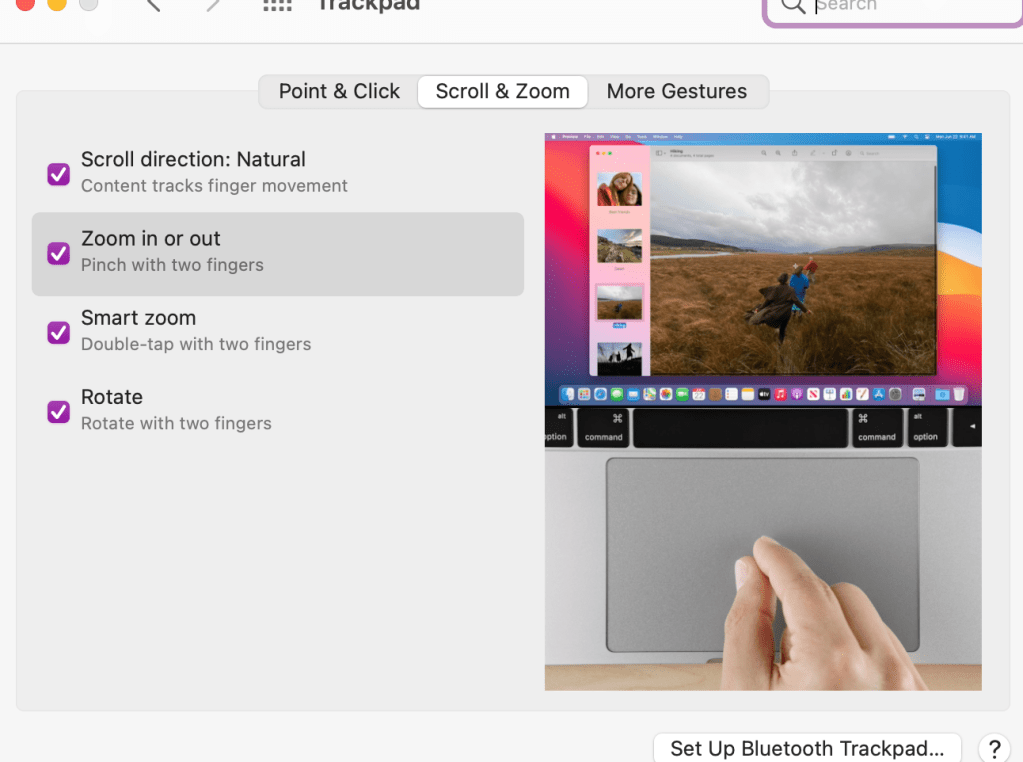
  1. Double tap the trackpad to zoom in and out quickly. Now, to make sure you have your settings the way you want them, you should go into your settings to trackpad and choose the features you think will help you best. Here is what I have turned on:

2. Mission control – swipe up with three fingers. I use this to have multiple desktops going at one time. I can separate my work projects on different desktops and then swipe up or left or right to go between desktops.

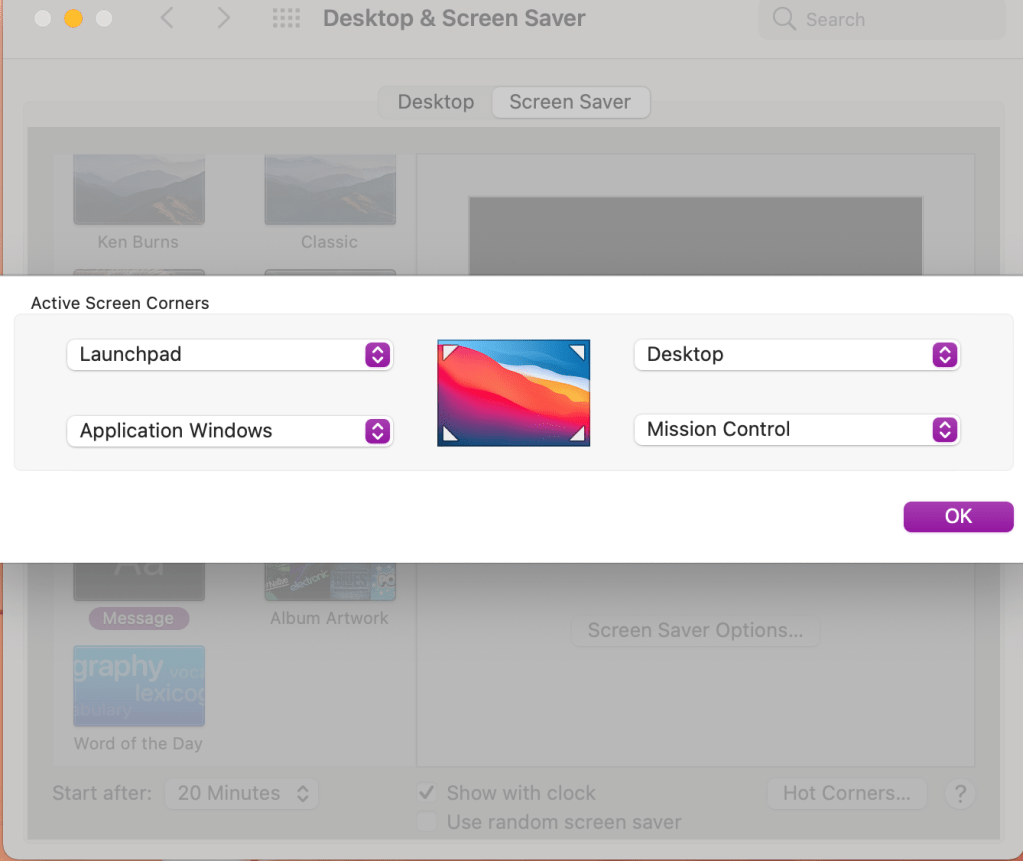
3. Setting up hot corners. Go into your desktop and screensaver settings. You can choose which shortcut you want each corner of your desktop to represent.

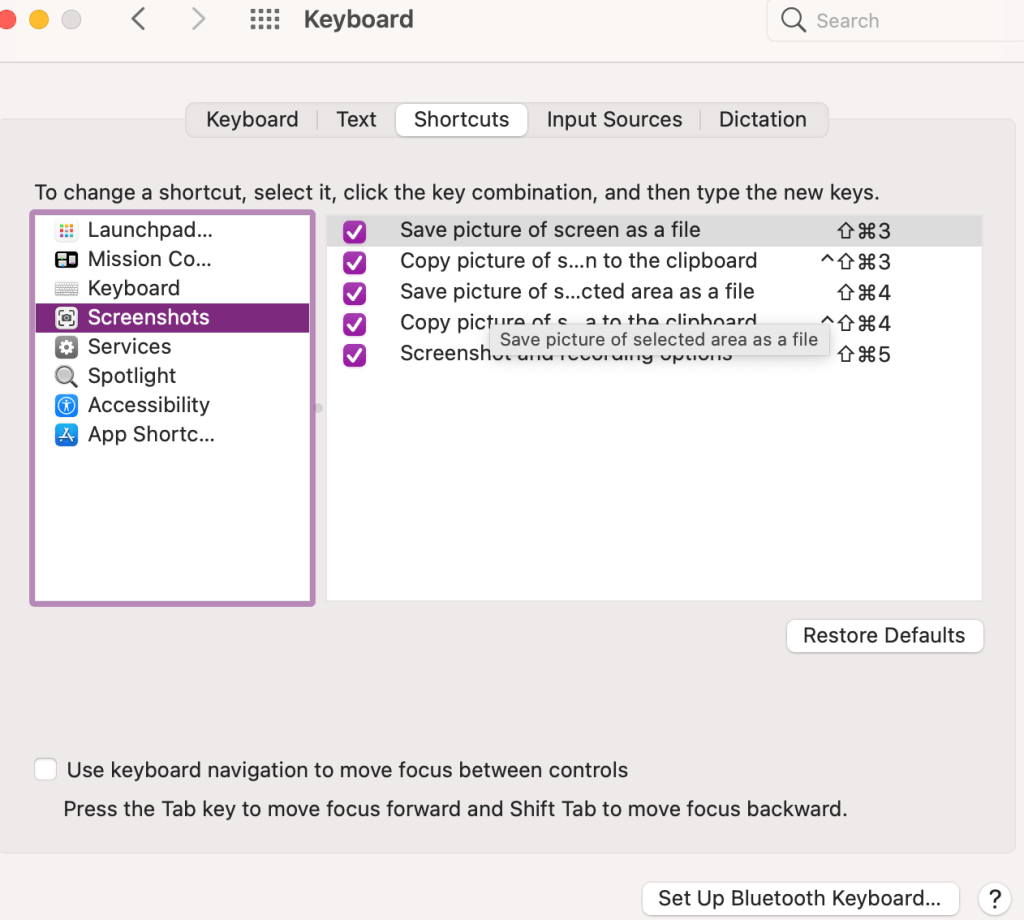
4. Take screenshots using Command + Shift + 4. I use this all the time to draw the box around whatever screenshot I’m taking. If you want to check out your other keyboard shortcuts go into your settings to keyboard and click on shortcuts.

5. And then just one favorite keyboard shortcut for good measure. Command + z. It doesn’t undo everything, but well, almost everything. I use this quite frequently for anytime I make a mistake. It’s like a quick undo button.

I hope this information was helpful! Please leave a comment on other tips and tricks you’d like to see.

Posted in Personal Skills, Work From Home

Email Tips: Strategies to Keep Your Inbox Organized

A little over three years ago I made the switch to a zero inbox and it was the best thing I ever did for my organizational skills. At that time I had had my personal Gmail account since about 2005 with thousands and thousands of emails. Instead of taking time putting everything into folders, I simply decided to archive it all and start from that day forward. Since I started a new job, I was able to keep my work email at zero inbox from day one.

Here’s how I manage emails now to keep my inbox as close to zero as possible:

  1. Check email first thing each morning (after affirmations and to do list) and before I close my computer from work for the day. By doing this, I can deal with any emails that came in before I started my work day for all the early birds who start before me and then I can create a plan for everything left over at the end of the day.
  2. Check email at set times throughout the day. Now, I don’t always follow this rule perfectly because it depends on what I’m working on. If I need to focus on a project or task and I don’t want to be disturbed by emails, I close the tab and set my timer to check it once per hour or every 2 hours so as to still be responsive to needs of coworkers, but not be interrupted by constant flows of incoming emails.
  3. I use the two minute rule when dealing with emails as I go through them. This idea comes from the Getting Things Done method by David Allen. If it’s something I can respond to right away, I quickly send a reply and then file that email in a folder. If it doesn’t need a response, I file it right away. If it’s informational and a deadline is attached, but it’s not immediate, I use the snooze feature to send it back to me when it needs to be completed or responded to. If it is going to take a bit longer, I work on it during an email response period during the day.

So by the end of the day everything should either be snoozed, responded to, or filed in a folder. I rarely delete emails because I do frequently have to refer back to old emails for information and it’s very easy to find when they are in folders. I also use the search function in Gmail to find the emails that I need. For newsletters and subscriptions, I create filters that send the emails directly to folders so it doesn’t even have to come to my inbox.

My personal favorite Gmail settings are to use the compact view with conversation view off. I like to see all my emails individually and conversation view confuses me a bit. Because I see all messages individually, I sometimes will only keep the most recent email in a thread and delete the rest because it’s not needed.

And, to save myself a little time, I have smart reply turned on so it auto detects what I might want to say. It’s kind of scary how accurate it is. I also use Grammarly to check my spelling, tone, and grammar as a I go.

Keeping my email organized and efficient has helped me to save time and communicate effectively!

Posted in Work From Home

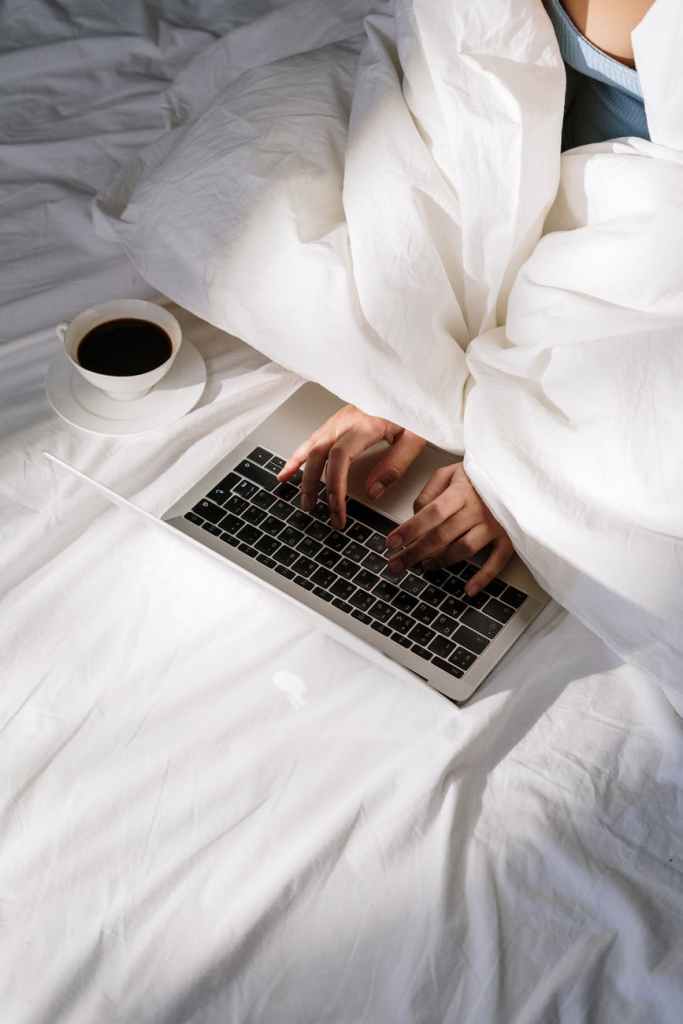
Do you work from your bed?

Photo by cottonbro on Pexels.com

At the beginning of the pandemic I’m sure many of us worked from our bed because it was comfy and convenient. If you’re still doing that, it could be taking a toll on you mentally and physically. Here are some of the tips I use that I tell my friends and students when I’m working with them:

  1. Designate a specific work space separate from where you sleep. If you’re having trouble sleeping at night and constantly use the computer or scroll through your phone, you may want consider putting those down and making sure the bed is your sleep zone. For a long time, I didn’t have the luxury of a separate room so I had a tiny desk that I used in my bedroom. Then I used my kitchen table when I had my own one bedroom. Now, I’m fortunate to have an office and it has made a huge difference in my mental capacity to get work done and separate sleep and rest time.
  2. If you do work in bed, use some sort of support for your laptop like a lap desk. This helps keep it flat and cushions the surface for you underneath. I use this more when I’m on the couch and watching TV in the background if I’m doing any type of mindless work. Some people even prefer to use a laptop tray to hold their work items.
  3. Use a battery operated alarm clock and put your phone across the room at night. Resist the urge to check your phone for texts or emails when you first wake up in the morning. Most people use their phones as their alarm clock, but a simple switch to another alarm can create that barrier to get your morning started off on the right note.

*Note that links are affiliate links and provide a commission if used.

Posted in Personal Skills, Time Management, Work From Home

Time Management Tips

I rarely hear people say they’ve got too much time on their hands. It’s often more about the lack of time that frustrates most. We all get the same amount of time in a day and how we use it has important implications for the outcomes of our lives.

Time management is an area of my life where I am constantly looking to improve. I seek ways to plan and be more productive. I used to thrive on being busy thinking that that was a marker of effective time management, when in fact it is not. Now, I seek ways to engage in deep focus and practice self care to make the most of the time I have. Here are some of the strategies that I use.

  • Single task. In order to turn my focus to the task at hand, I close out the email tabs, turn off the notifications, and focus on one item of my to do list at a time. Each day I use a template to write tasks for the day.
  • Modified Pomodoro. Google the Pomodoro Method and you’ll find lots of articles and resources. I use it, but sometimes I modify it and use the amount of work time that fits best in my schedule. So instead of 25 minute work chunks, I might do 30 or 45 or even an hour.
  • Prioritize. I keep my recurring tasks and upcoming to do items on a program called TickTick. Each day, I use that as my guide to prioritize what needs to be completed. I set aside 15-20 minutes each morning to start my day with prioritizing that way I’m not caught off guard as the day goes on. If something comes up, I can decide if it fits in my priorities or if it can be moved to the next day.
  • Improve technology skills. This is an important time management tip for anyone working from home. If you spend a lot of time on the computer, then finding quicker ways to complete tasks saves time. Time saved by technology can be spent on other priority areas. Utilize the free resources available to brush up on your tech skills.
  • Calendar. I use Google calendar to color code all of my meetings and tasks. I add big projects to my calendar and block off time to complete them. I also use a paper calendar because I still like to have things written down.

*I get commissions for purchases made through links in this post.

Posted in Work From Home

Setting up for Video Calls

Setting up for video calls requires some effort and I’m actually getting kind of tired of it. This past year, I’ve spent almost every single day on my computer on some sort of video call, either for work or just spending time with friends. So when I can, I turn my video off for meetings or calls. I do this to take a mental break from the eye gymnastics of looking at myself (admit it, we all do it) and everyone else in the call at the same time. By the way, in Zoom, you can use hide self-view if you want to remove the temptation of viewing yourself!

Here are some tips I use while on video calls for the best quality and ease of viewing:

  1. I have a 2020 Macbook Air (I did a YouTube review you can watch here). One downside to this particular Macbook is the poor camera quality. Therefore, I utilize a ring light to improve my video quality. The ring light I have includes 3 settings, but there are many other options you can choose from. It’s a great investment to quickly improve the quality of your video.

2. On Zoom, I like to maintain my view of other participants in the call while someone is screen sharing. To do this, I make sure I have the Side-by-Side view option enabled. And then I can drag the panel over to see more videos if I want to see more of the participants. You can view the instructions on how to do that here.

3. A laptop stand is also a great investment for video calls. It is important for ergonomic reasons to raise your laptop to eye level, but also for connecting to the video participants. And if you don’t have a laptop stand, you can use reams of paper or books to prop up your laptop and bring your camera to eye level.

There are many more tips to set up your video calls for success, but these three should get you started!

Posted in Work From Home

Organizing My Workspace


I noticed after almost a year of 100% working from home that my workspace ebbs and flows from perfectly placed paperclips to piles of notes and post-its that I’m sorting through. One thing I learned is to immediately file, shred, or throw away anything that was not useful to me in the next 24-48 hours. I don’t always follow this advice because I think, “What if I need that?!” Spoiler alert: If it’s that important I can digitize it on my electronic to-do list or send a mental note via email to myself by scanning it as a PDF through Evernote.

So here are my top tips for keeping your (my? our?) workspace organized in 2021:

  1. Keep your favorite planner and pens nearby. You don’t want to be searching for your favorite pen (and let’s be honest, you have one!) when you need to take down some important notes during a Zoom call. Here are mine.
  2. Invest in a few things that make you feel good about your workspace. For me, that was ordering a pink desk mat to go over my table. Instead of a desk, I have two old tables in an L-shape. I wanted some things to brighten up my space. I also got a little fake plant from Target and a month desk calendar in the $1 section, which I love!
  3. Make sure you research ergonomics tips. I have an external keyboard and mouse so I can use my laptop stand (which doubles as a cooling station). This helps reduce the strain on my neck when I’m staring at the screen for long periods of time.

These are just some of the tips to get started working from home. I’ll be updating this blog with new ideas and fresh tips periodically, so subscribe to stay updated. Please note that any links to products may earn a small affiliate commission.