Posted in Uncategorized

Self Care is Important – Let’s Take Time for Ourselves

Self care is an essential part of staying productive and living a happy and fulfilling life.

As a lifelong student and someone who has always worked more than one job at a time, I realize that self care is a huge part of maintaining balance in my life. Yes, I work a lot, but I also need to make time to do things for myself. Sometimes that means cutting expenses in other places and splurging on myself.

So a couple of free self care things I like to do are to take walks or just simply nap for 20 minutes. Between meetings throughout the day, I judge if I need to get some energy out and get sunshine or if I need to shut my eyes and rest my mind for a bit. I try to build time into my schedule so that I can make these adjustments as needed.

Warmies! My friend got me this gift and I absolutely love it. Even while I’m working, I can heat up my unicorn neck wrap and put it around my neck to help soothe some of the neck pain that comes from looking at a computer all day.

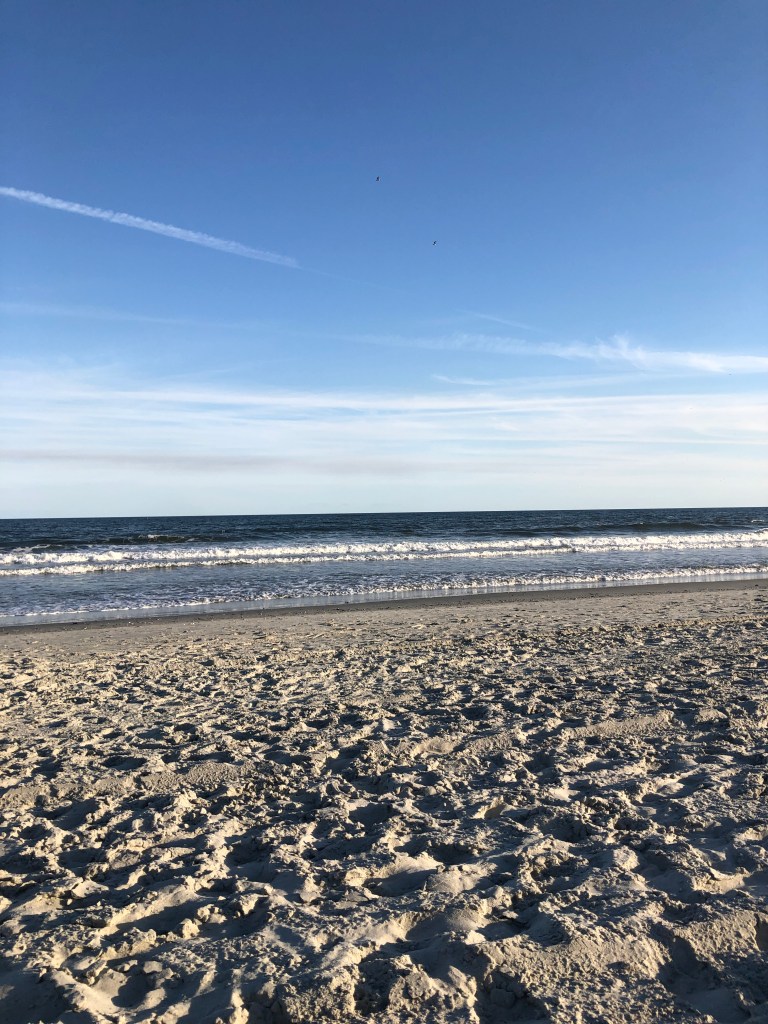
BEACH! Now I’m fortunate that I’m within driving distance to a beach. So on days I truly need to just get away and get some peace and relax, I can grab a book or listen to a podcast on the beach. When I didn’t live by a beach, I used to find a local park where I could sit under a tree and still be in nature.

And my last self-care splurge is a massage. I don’t get them very often, but they are life-changing. I feel so relaxed and in less pain after a massage. If you can find a massage school or a Groupon, you can usually get a good deal. It’s worth it!
Posted in Relaxation

What do you do for self care?

As a life long student and someone who has always worked more than one job at a time, I realize that self care is a huge part of maintaining balance in my life. Yes, I work a lot, but I also need to make time to do things for myself. Sometimes that means cutting expenses in other places and splurging on myself.

So a couple of free self care things I like to do are to take walks or just simply nap for 20 minutes. Between meetings throughout the day, I judge if I need to get some energy out and get sunshine or if I need to shut my eyes and rest my mind for a bit. I try to build time into my schedule so that I can make these adjustments as needed.

Warmies! My friend got me this gift and I absolutely love it. Even while I’m working, I can heat up my unicorn neck wrap and put it around my neck to help soothe some of the neck pain that comes from looking at a computer all day.


BEACH! Now I’m fortunate that I’m driving distance to a beach. So on days I truly need to just get away and get some peace and relax, I can grab a book or listen to a podcast on the beach. When I didn’t live by a beach, I used to find a local park where I could sit under a tree and still be in nature.

And my last self care splurge is a massage. I don’t get them very often, but they are life changing. I feel so relaxed and in less pain after a massage. If you can find a massage school or a Groupon, you can usually get a good deal. It’s worth it!

Posted in Uncategorized

5 Helpful Keyboard shortcuts for Macs

Keyboard shortcuts for Macs can be really helpful to staying productive and working more efficiently. I am a long-time Apple user. I do have to say that I preferred my 2013 Macbook Pro to my current 2020 Macbook Air.

However, the one thing that remains the same is my desire to do tasks quickly and efficiently. To do so, I have some settings that make switching between projects pretty easy. I also use helpful keyboard shortcuts for Macs whenever possible.

I’ll share some of my favorite features here.

Keyboard shortcuts for Macs

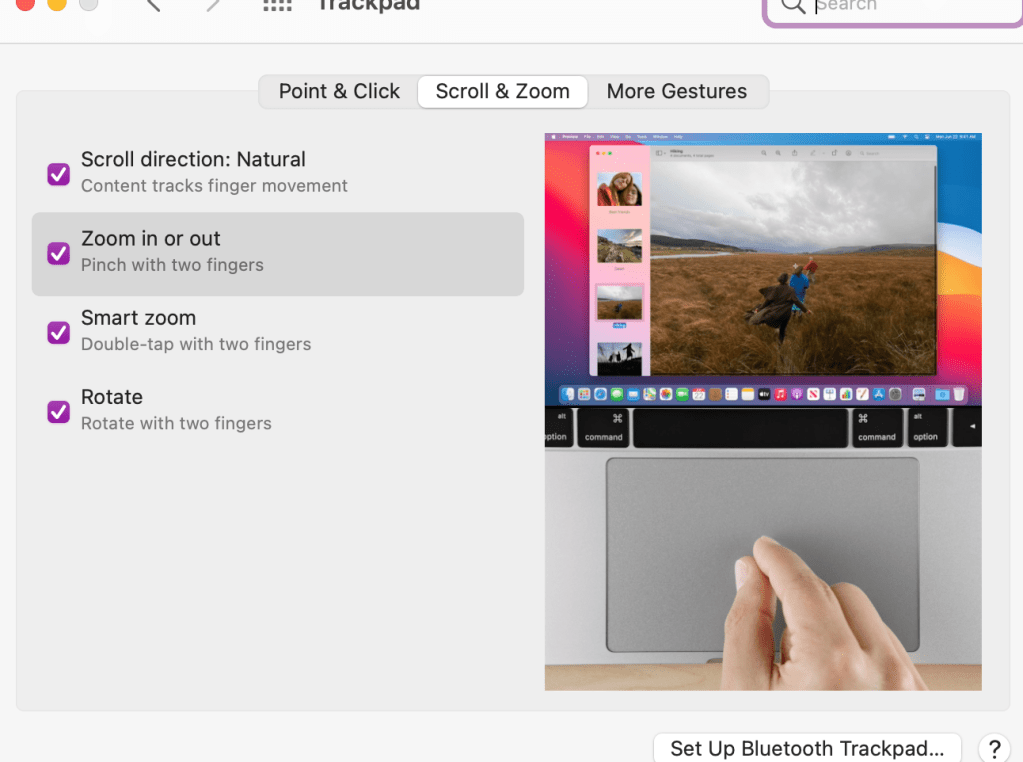
  1. Double tap the trackpad to zoom in and out quickly. Now, to make sure you have your settings the way you want them, you should go into your settings to trackpad and choose the features you think will help you best. Here is what I have turned on:
keyboard shortcuts for mac

2. Mission control – swipe up with three fingers. I use this to have multiple desktops going at one time. I can separate my work projects on different desktops and then swipe up or left or right to go between desktops.

keyboard shortcuts for mac

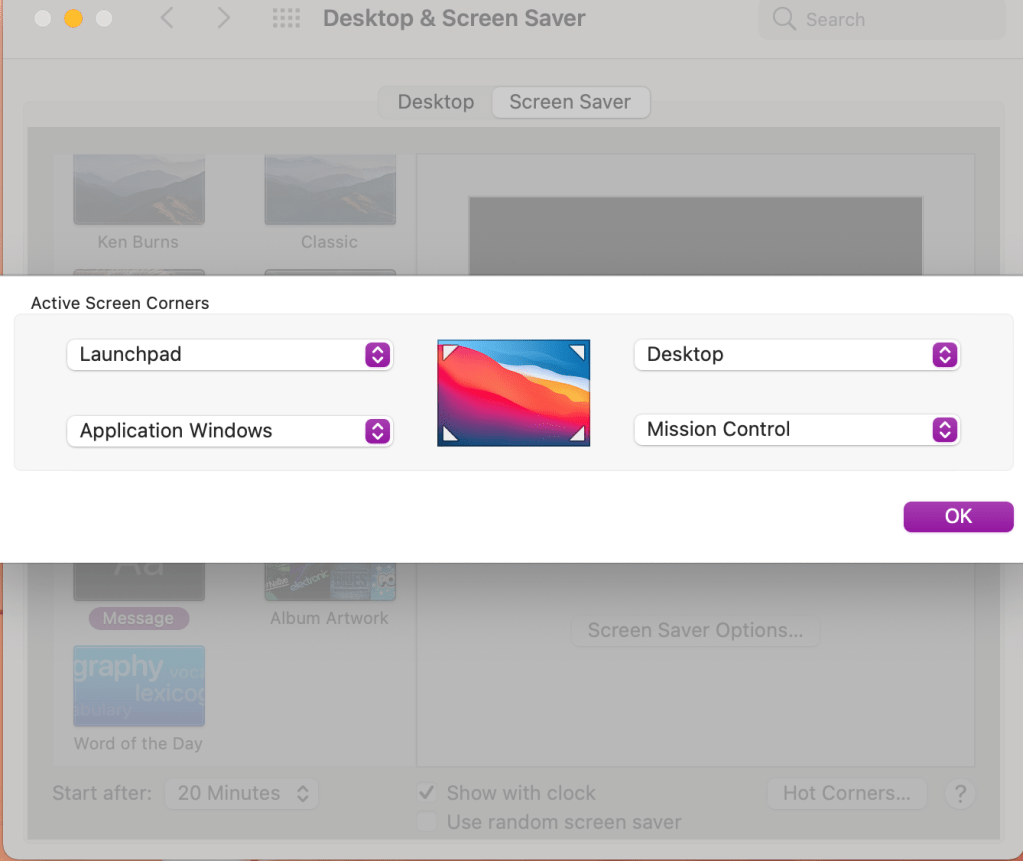
3. Setting up hot corners. Go into your desktop and screensaver settings. You can choose which shortcut you want each corner of your desktop to represent.

keyboard shortcuts for mac

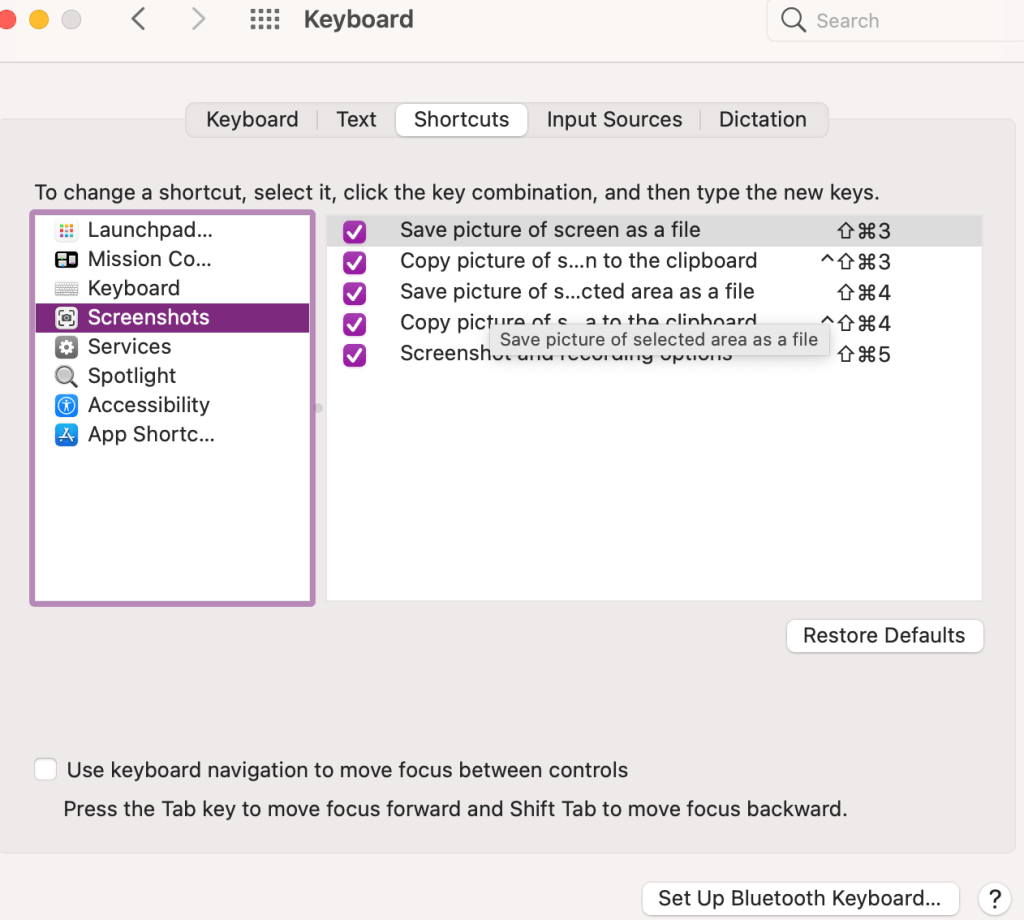
4. Take screenshots using Command + Shift + 4. I use this all the time to draw the box around whatever screenshot I’m taking. If you want to check out your other keyboard shortcuts go into your settings to keyboard and click on shortcuts.

keyboard shortcuts for mac

5. And then just one favorite keyboard shortcut for good measure. Command + z. It doesn’t undo everything, but well, almost everything. I use this quite frequently for anytime I make a mistake. It’s like a quick undo button.

I hope this information was helpful! Please leave a comment on other tips and tricks you’d like to see.

Posted in Technology Tips, Work From Home

Keyboard and trackpad shortcuts for Macs

I am a long time Apple user. I do have to say that I preferred my 2013 Macbook Pro to my current 2020 Macbook Air. However, the one thing that remains the same is my desire to do tasks quickly and efficiently. To do so, I have some settings that make switching between projects pretty easy. I also use helpful keyboard and trackpad shortcuts whenever possible. I’ll share some of my favorite features here.

  1. Double tap the trackpad to zoom in and out quickly. Now, to make sure you have your settings the way you want them, you should go into your settings to trackpad and choose the features you think will help you best. Here is what I have turned on:

2. Mission control – swipe up with three fingers. I use this to have multiple desktops going at one time. I can separate my work projects on different desktops and then swipe up or left or right to go between desktops.

3. Setting up hot corners. Go into your desktop and screensaver settings. You can choose which shortcut you want each corner of your desktop to represent.

4. Take screenshots using Command + Shift + 4. I use this all the time to draw the box around whatever screenshot I’m taking. If you want to check out your other keyboard shortcuts go into your settings to keyboard and click on shortcuts.

5. And then just one favorite keyboard shortcut for good measure. Command + z. It doesn’t undo everything, but well, almost everything. I use this quite frequently for anytime I make a mistake. It’s like a quick undo button.

I hope this information was helpful! Please leave a comment on other tips and tricks you’d like to see.

Posted in Personal Skills

Setting up my Etsy Shop

My 2021 goals included getting my Zumba instructor certification, starting a YouTube channel, and opening an Etsy shop. So far, I’ve done all three and I’m working on improving each one. The one that is the biggest learning curve is the Etsy shop. I’ve watched a lot of helpful videos online about setting up the shop, but I still have a long way to go.

I enjoy using my iPad Pro to create designs on Procreate and then using Keynote and Google Slides to edit the final designs. I upload these digital designs on Etsy for download or use with GoodNotes.

Here are a few of the mistakes I made when setting up my shop:

  1. Leaving the info and policies blank. When I first created the shop I just created a name and started adding the listings. After watching some tutorial videos, I realized that I needed to add a better description of the types of products I was planning to sell and policies for the products.
  2. Not enough description about the digital products. When I created my listings, I just put that a PDF would be available. I looked at some other examples and then made that more specific about the size and colors.
  3. Incorrect quantity. When I finally made my first sale, I was so excited! Yay – someone wanted to try my designs. However, I had accidentally set my quantity for the product to 1, so it then showed up as Sold Out on my page. Since digital products can be downloaded multiple times, the best use of quantity is to put 999, which is the maximum. So, I had to pay $0.20 to re-list the item, which means I made nothing from the sale since Etsy took it’s percentage and I only sold it for $0.50 to begin with.

Besides digital products, I am testing one physical product through an outside vendor. I created a design for a coffee mug and I linked it with Printful. I think it’s a beautiful design, but so far I haven’t made any sales from it.

I look forward to continuing to learn how to grow my Etsy shop and create more designs!

Posted in Uncategorized

Morning Routine: 5 Important Things I Do Each Day

I’m curious. Do you have a morning routine? It’s something I’ve been working on for a long time. I wouldn’t say that I have a set morning routine, but I would say that I’m trying to improve whenever possible. Years ago, I got up and ran before work as I was training for a half marathon. That was a routine because I would often sleep in my running clothes or have them laid out next to me.


These days, I do a few things every morning to try and get my brain going and get organized for the day.

morning routine
Photo by Ron Lach on Pexels.com

Morning routine

  1. I make my bed. Growing up I wasn’t one of those kids that made their bed or was forced to by my parents. It’s a habit I grew into as an adult. I just like the look of having my comforter pulled up even if my sheets aren’t perfectly aligned underneath. I don’t know the science behind it, but I do feel like there is a connection between my brain and the organization of the day when I make my bed in the morning.
  2. Stretching. I haven’t progressed to full-on yoga in the morning, but I’ll stretch my neck and my body to get ready for the day. I would love to spend 20-30 minutes doing yoga, but I’m not quite there yet. I typically take a few minutes to move my head from side to side, raise my arms, and do a few lunges.
  3. Coffee. Okay. I admit I’ve tried to kick the coffee addiction in the past with no success. So for now, it’s part of my morning routine to make coffee. I just love the smell of it and the feel of the warm mug in my hands, even on a hot day.
  4. Affirmations. I like to start my day by journaling my intentions and writing down my affirmations. I repeat them to myself in the mirror a few times for good measure. I notice complete mood shifts if I got several days in a row without writing my affirmations. My anxiety creeps in more, I’m irritable, and my generally positive outlook is not as sunny.
  5. To-do list and email. After I get some breakfast (or while I’m eating breakfast), I go through my to-do list for the day and check my email. I prioritize and review my schedule to make sure I’m still on the best course for the day to achieve my goals.

While I have great ambitions to create an even better and more consistent morning routine, these are the things I do on a regular basis to get me started and going for the day. What do you do you do? What are some helpful tips you’d like to pass along?

Posted in Personal Skills

Morning Routines: A Few Things I Do Each Day

I’m curious. Do you have a morning routine? It’s something I’ve been working on for a long time. I wouldn’t say that I have a set morning routine, but I would say that I’m trying to improve whenever possible. Years ago, I got up and ran before work as I was training for a half marathon. That was a routine because I would often sleep in my running clothes or have them laid out next to me.


These days, I do a few things every morning to try and get my brain going and get organized for the day.

  1. I make my bed. Growing up I wasn’t one of those kids that made their bed or was forced to by my parents. It’s a habit I grew into as an adult. I just like the look of having my comforter pulled up even if my sheets aren’t perfectly aligned underneath. I don’t know the science behind it, but I do feel like there is a connection with my brain and the organization of the day when I make my bed in the morning.
  2. Stretching. I haven’t progressed to full on yoga in the morning, but I’ll stretch my neck and my body to get ready for the day. I would love to spend 20-30 minutes doing yoga, but I’m not quite there yet. I typically take a few minutes to move my head from side to side, raise my arms, and do a few lunges.
  3. Coffee. Okay. I admit, I’ve tried to kick the coffee addiction in the past with no success. So for now, it’s part of my morning routine to make coffee. I just love the smell of it and the feel of the warm mug in my hands, even on a hot day.
  4. Affirmations. I wrote another post about how I write daily affirmations. I like to start my day by journaling my intentions and writing down my affirmations. I repeat them to myself in the mirror a few times for good measure. I notice complete mood shifts if I got several days in a row without writing my affirmations. My anxiety creeps in more, I’m irritable, and my general positive outlook is not as sunny.
  5. To-do list and email. After I get some breakfast (or while I’m eating breakfast), I go through my to do list for the day and check my email. I prioritize and review my schedule to make sure I’m still on the best course for the day to achieve my goals.

While I have great ambitions to create an even better and more consistent morning routine, these are the things I do on a regular basis to get me started and going for the day. What do you do you do? What are some helpful tips you’d like to pass along?

Posted in Uncategorized

Google Chrome Extensions: 5 Awesome Ones to Try

There are so many Google Chrome extensions to choose from. I have both a Macbook Air laptop and an HP desktop computer. I use Google Chrome as my Internet browser in both places. I can sign in to my Google account and all my preferences are saved, included my chrome extensions. In this post, I want to share some of my favorite Google Chrome extensions that I use on a regular basis. I will share my top 5, ending with my favorite one!

My 5 Favorite Google Chrome Extensions

5. GIPHY for Chrome – I love this extension as a teacher because I can easily add GIF’s or emojis to Google Slides or emails just by opening the extension, searching for what I want, and then dragging it onto my page.

Google Chrome extensions

4. Grammarly – I do have the paid account for Grammarly, but this is such a helpful tool. It connects to everything I do online and checks my spelling and grammar as I go. I highly recommend the invest if you do a lot of writing. The paid version even checks your email for the tone.

3. Screencastify – This extension is great for recording screencast videos or screenshots. You can capture your web browser, whole desktop, add your video in, and edit the videos to share with others. I use this to create tutorials for my students.

2. Mercury Reader – A rocket ship icon that turns on and off serves the basis of this extension. Essentially, it helps to make websites with lots of advertisements more readable. When you turn on Mercury Reader, it reduces all that background “stuff” and just gives a clear text to scroll through and read. This is another tool I recommend to students to speed up reading online and doing research.

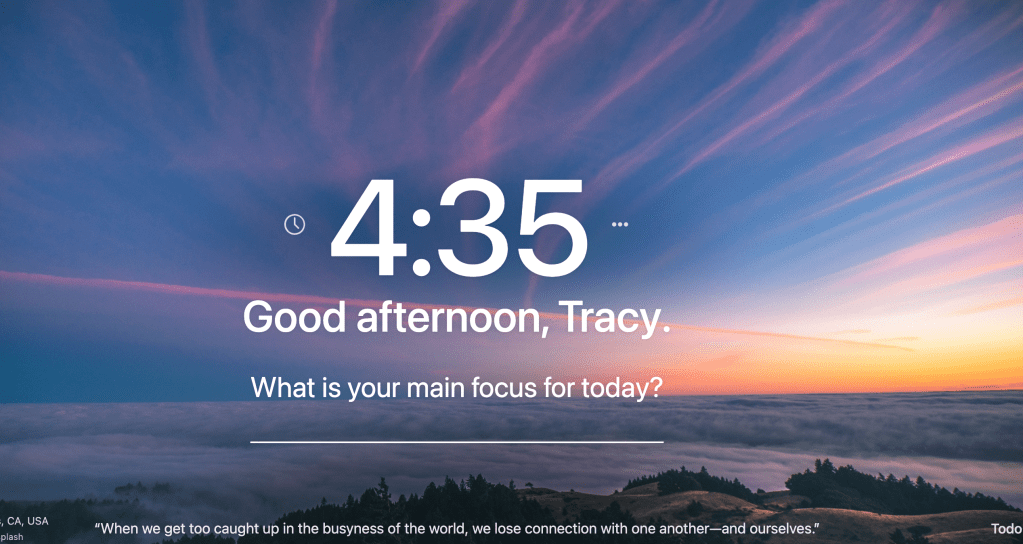
  1. 1. Momentum – And my favorite extension by far is the Momentum extension (it looks like a little green M&M). Every time I open a new tab I see a beautiful image with a quote. I can write my focus for the day and it even has a spot to add my to do list. It saves so it’s always there when I open a new tab for the day. Since the images change, it links back to the original photographer and I can view more beautiful images. I just absolutely LOVE this extension!!

I use other extensions, but these are my favorite and most frequently used. Leave a comment if you’d like to hear about others!

Posted in Technology Tips

My Favorite Google Chrome Extensions

I have both a Macbook Air laptop and an HP desktop computer. I use Google Chrome as my Internet browser in both places. I can sign in to my Google account and all my preferences are saved, included my chrome extensions. In this post I want to share some of my favorite Google Chrome extensions that I use on a regular basis. I will share my top 5, ending with my favorite one!

5. GIPHY for Chrome – I love this extension as a teacher because I can easily add GIF’s or emojis to Google Slides or emails just by opening the extension, searching for what I want, and then dragging it onto my page.

Good Morning Hello GIF by Hill's Pet Nutrition

4. Grammarly – I do have the paid account for Grammarly, but this is such a helpful tool. It connects to everything I do online and checks my spelling and grammar as I go. I highly recommend the invest if you do a lot of writing. The paid version even checks your email for the tone.

3. Screencastify – This extension is great for recording screencast videos or screenshots. You can capture your web browser, whole desktop, add your video in, and edit the videos to share with others. I use this to create tutorials for my students.

2. Mercury Reader – A rocket ship icon that turns on and off serves the basis of this extension. Essentially, it helps to make websites with lots of advertisements more readable. When you turn on Mercury Reader, it reduces all that background “stuff” and just gives a clear text to scroll through and read. This is another tool I recommend to students to speed up reading online and doing research.

  1. Momentum – And my favorite extension by far is the Momentum extension (it looks like a little green M&M). Every time I open a new tab I see a beautiful image with a quote. I can write my focus for the day and it even has a spot to add my to do list. It saves so it’s always there when I open a new tab for the day. Since the images change, it links back to the original photographer and I can view more beautiful images. I just absolutely LOVE this extension!!

I use other extensions, but these are my favorite and most frequently used. Leave a comment if you’d like to hear about others!

Posted in Personal Skills, Work From Home

Email Tips: Strategies to Keep Your Inbox Organized

A little over three years ago I made the switch to a zero inbox and it was the best thing I ever did for my organizational skills. At that time I had had my personal Gmail account since about 2005 with thousands and thousands of emails. Instead of taking time putting everything into folders, I simply decided to archive it all and start from that day forward. Since I started a new job, I was able to keep my work email at zero inbox from day one.

Here’s how I manage emails now to keep my inbox as close to zero as possible:

  1. Check email first thing each morning (after affirmations and to do list) and before I close my computer from work for the day. By doing this, I can deal with any emails that came in before I started my work day for all the early birds who start before me and then I can create a plan for everything left over at the end of the day.
  2. Check email at set times throughout the day. Now, I don’t always follow this rule perfectly because it depends on what I’m working on. If I need to focus on a project or task and I don’t want to be disturbed by emails, I close the tab and set my timer to check it once per hour or every 2 hours so as to still be responsive to needs of coworkers, but not be interrupted by constant flows of incoming emails.
  3. I use the two minute rule when dealing with emails as I go through them. This idea comes from the Getting Things Done method by David Allen. If it’s something I can respond to right away, I quickly send a reply and then file that email in a folder. If it doesn’t need a response, I file it right away. If it’s informational and a deadline is attached, but it’s not immediate, I use the snooze feature to send it back to me when it needs to be completed or responded to. If it is going to take a bit longer, I work on it during an email response period during the day.

So by the end of the day everything should either be snoozed, responded to, or filed in a folder. I rarely delete emails because I do frequently have to refer back to old emails for information and it’s very easy to find when they are in folders. I also use the search function in Gmail to find the emails that I need. For newsletters and subscriptions, I create filters that send the emails directly to folders so it doesn’t even have to come to my inbox.

My personal favorite Gmail settings are to use the compact view with conversation view off. I like to see all my emails individually and conversation view confuses me a bit. Because I see all messages individually, I sometimes will only keep the most recent email in a thread and delete the rest because it’s not needed.

And, to save myself a little time, I have smart reply turned on so it auto detects what I might want to say. It’s kind of scary how accurate it is. I also use Grammarly to check my spelling, tone, and grammar as a I go.

Keeping my email organized and efficient has helped me to save time and communicate effectively!